Get the best results from your AI chat
LMSable works with the AI chat you already use. You copy a prompt from LMSable, run it in your chat and paste the answer back. We tested this with ChatGPT, Claude and Perplexity. All three build a course, a quiz or H5P content that imports first time, as long as you follow the tips below. Other chats work the same way.
Which chat to choose
| ChatGPT | Claude | Perplexity | |
|---|---|---|---|
| Paste answers into LMSable | Yes | Yes | Yes |
| Attach a PDF or document as course material | Yes | Yes | Yes |
| Read and edit your courses through a connector | Yes, see Connect ChatGPT | Yes, see Connect Claude | Perplexity Pro only, see Connect Perplexity |
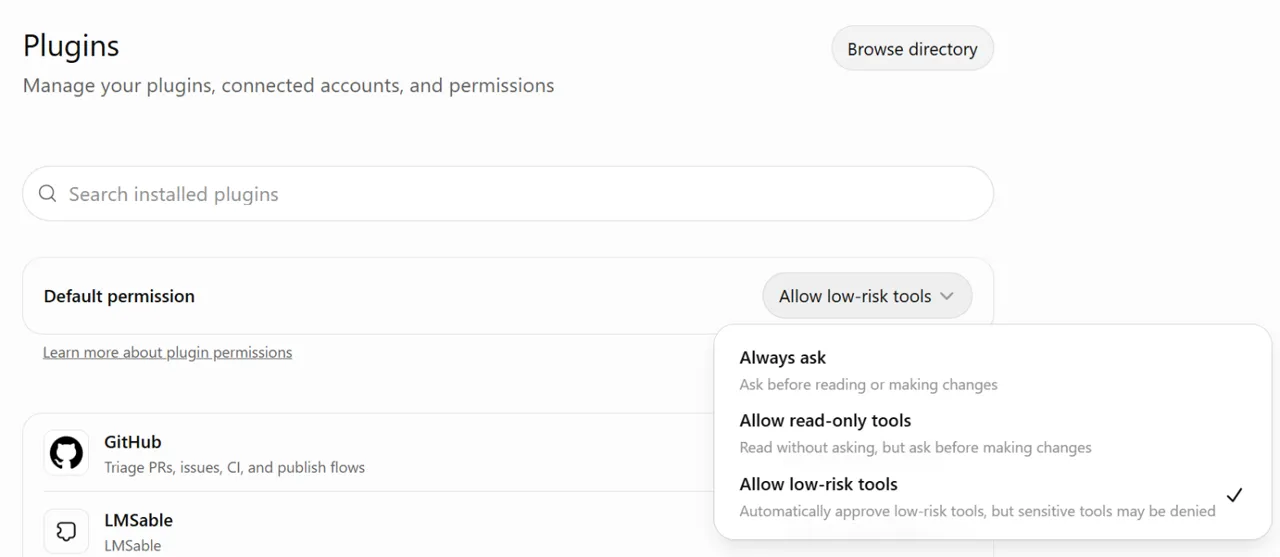
| Before it changes a lesson through the connector | Saves straight away with the default permission Allow low-risk tools | Asks for your approval of each tool, unless you allow it permanently | Shows what it will save and waits for you to reply "yes" |
Use the chat you know and pay for. The default model in each of them is enough: you do not need a reasoning or research mode to get a valid answer, and those modes are slower.
Copy the answer the right way
Most import errors come from how the answer was copied, not from what the AI wrote.
- Use the chat's copy button, not mouse selection. Selecting by hand easily misses the first
{or the last}. - When the answer has a code block, copy the code block with the copy button at its top. In ChatGPT, if the JSON is plain text, the copy button under the message adds formatting characters. LMSable removes them when you paste, but a code block is the safest. Ask: "Write the whole JSON in one code block", then copy the block.
- Perplexity adds a link to your attached file in the middle of the answer. LMSable removes it when you paste, so you do not have to.
- Paste without changes. Do not add a sentence before the JSON or fix anything by hand. If you want changes, ask the chat for them and copy the new answer.
Lessons written in HTML
When you ask for an HTML lesson, Perplexity, and sometimes Claude, saves the code as a separate file or opens it in a preview panel instead of writing it in the answer. Add to your message: "Do not create a file. Write the whole HTML code in your answer." Then copy it as usual.
Course material and long courses
- Attach the material (PDF, Word, slides) to the chat rather than pasting long text. Then ask the chat to use only the attached material, so it does not add facts from elsewhere.
- Long answers can be cut short. If LMSable says "The pasted answer is not complete JSON", ask the chat to repeat the full JSON, or import a shorter outline: fewer lessons, or without lesson content. See Import the table of contents from your AI.
- Free chat plans have message limits. A course with lesson content takes several long answers, so you may hit the limit halfway. On the free Perplexity plan our test stopped after about ten questions. Plan the course in one session, or use a paid plan for bigger courses.
Teach your chat the LMSable format
Add the free LMSable skill to your chat once. Your AI then knows the format LMSable checks and answers questions about LMSable. See Use LMSable with your AI chat.
Editing through a connector
A connector lets the chat change your course directly. Before every change LMSable saves a lesson version, so you can always go back. Still:
- Choose Read only when you only want the chat to review a course.
- In ChatGPT, open Settings → Plugins and set Default permission to Allow read-only tools if you want it to ask before each change, or to Always ask. You can also change the permission for LMSable alone in the same list.
- After a bigger change, open the lesson in LMSable and look at it before you export.
More in What your AI can do with your course.
If something goes wrong
- "That is not valid JSON": copy the code block instead of the whole message, or ask the chat to write the whole JSON in one code block.
- "The pasted answer is not complete JSON": the chat cut its answer short. Ask it to send the complete answer again.
- The answer has no JSON, only a description or a link to a file: ask the chat to write the full answer in the chat, in one code block.
Next
Connect your chat so it can work on your courses directly: Connect Claude with a connector, Connect ChatGPT with a custom MCP server or Connect Perplexity with a custom MCP connector.