Add narration to presentation slides
Narration is a voice-over for the slides of a Presentation course. Each slide gets its own short audio clip, so a mistake costs you one slide, and moving slides around does not break anything. Narration works only on slides, not on quizzes, videos or other items.
Before you start
You need a Presentation course with slides: see Edit presentation slides.
Open the Narration panel
- Open the Slides step and select a slide.
- Under the slide preview, click Add narration. In a course that already has narration, the Narration panel is open straight away.
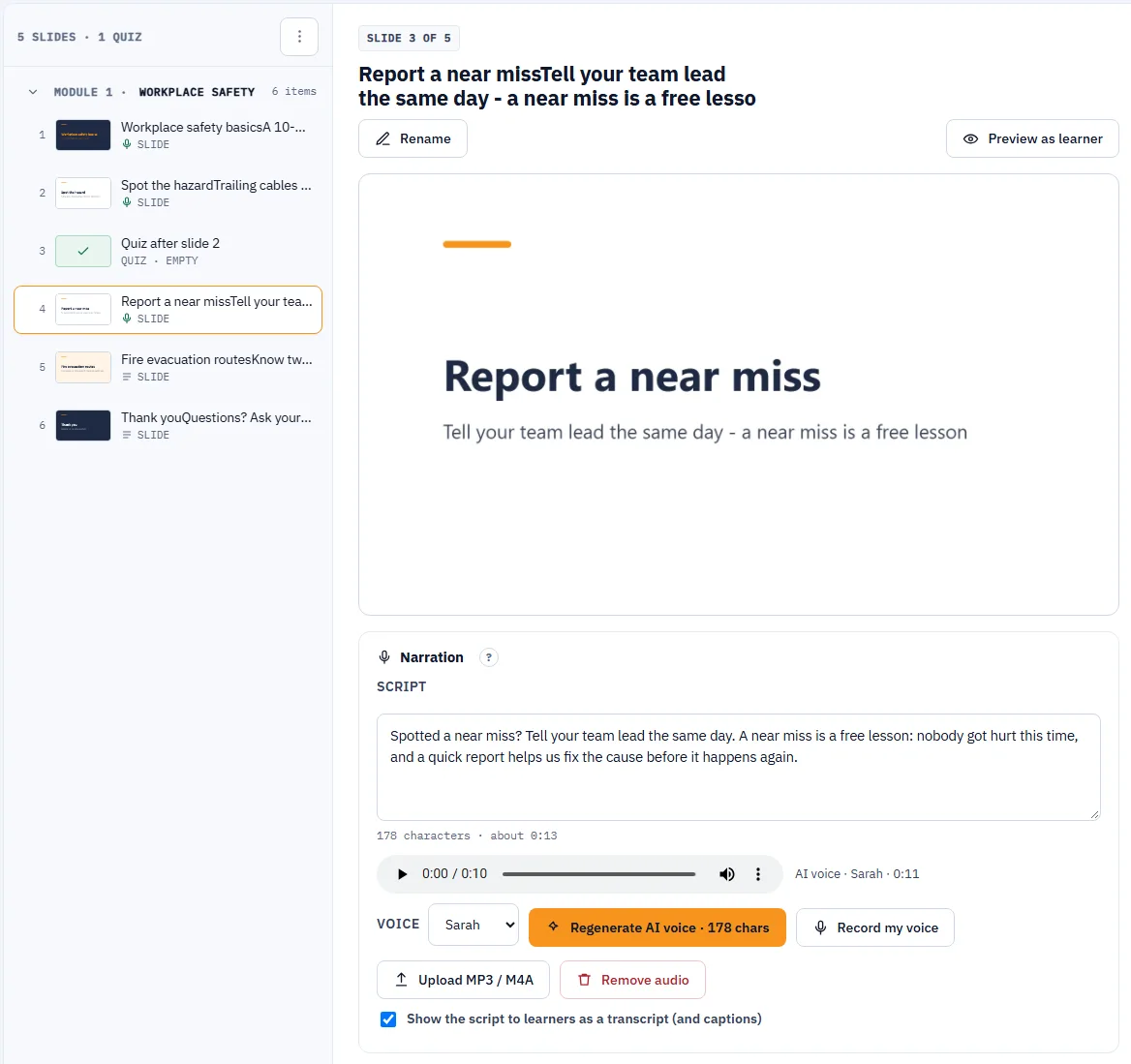
Write the script
The Script is what the narrator says on this slide. Speak to the learner. Do not just read the bullet points.
- A script can have up to 3,000 characters, about 3.5 minutes of speech.
- Under the field you see the length and an estimate of the speaking time, for example 389 characters · about 0:29.
- The script saves on its own a moment after you stop typing.
Add the audio
There are three ways to get audio for a slide. A new clip replaces the old one.
AI voice
- Pick a voice in Voice. You get the voices for the course language.
- Click Generate AI voice. The button shows how many characters it uses, for example Generate AI voice · 389 chars.
- When it is ready, you see how many characters you have left.
The AI voice reads the saved script. Characters count when the audio is generated, so a clip you remove still counts. The allowance is shared with the Audio block:
- Free: 3,000 characters in total for your account, one time. It does not renew.
- Pro: 60,000 characters a month.
If a slide already has your recording or an uploaded file, LMSable asks Replace your audio? before it uses the AI voice. All limits: Course and storage limits.
Record your voice
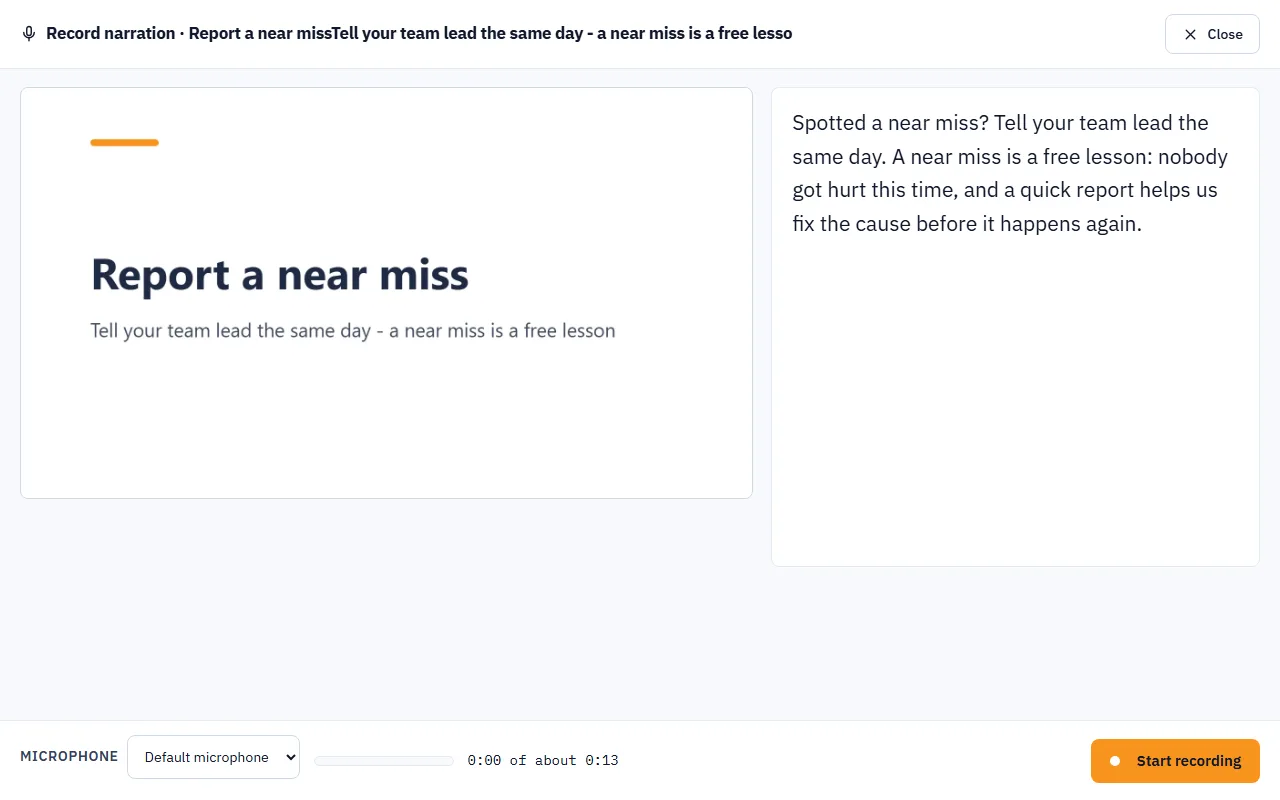
- Click Record my voice. A full-screen window opens with the slide and your script as a prompter.
- Choose your microphone in Microphone if you have more than one. The bar shows your voice level.
- Click Start recording. The timer shows your time against the estimate, for example 0:12 of about 0:29. Start over throws the take away and starts again.
- Click Stop recording and listen to the take.
- Click Keep take to save it, or Record again. After Keep take, the window moves on to the next slide that has no audio yet. When there is none left, it closes.
The recording is saved as an MP3 file in your browser before upload. Close or Esc closes the window without saving. If you have an unsaved take, LMSable asks Discard this recording? first.
If the browser blocks the microphone, allow microphone access for this site (the icon in the address bar) and try again.
Upload an audio file
Click Upload MP3 / M4A and choose the file. One clip can be up to 8 MB. For speech, 64 kbps is enough. LMSable reads the length of the clip from the file. If it cannot, export the file again as MP3 or M4A.
Audio files count toward the media storage of the course, together with slide pictures and other files.
Remove the audio
Click Remove audio and confirm. The audio is deleted, the script stays.
When the script changes after the audio
If you edit the script after the audio was made, the panel shows Script changed after the audio. The audio does not change on its own. Click Regenerate for an AI voice, or Record again for a recording or an uploaded file. In the list, an icon next to each slide shows its state: audio ready, script only, or script changed.
Transcript and captions
Show the script to learners as a transcript (and captions) is on by default. Learners then get captions and a transcript panel for this slide. Turn it off if the script is only a note for you.
Captions for an AI voice follow the timing of the words. Captions for a recording or an uploaded file are spread over the clip by the length of the sentences, so they can be a little ahead or behind.
Time on slide
When a slide has audio, Time on slide shows the length of the clip, for example Narration · 0:32. It is the clip length rounded up to a full second, plus one second. When you remove the audio, the time you set by hand comes back.
Scripts from your AI chat
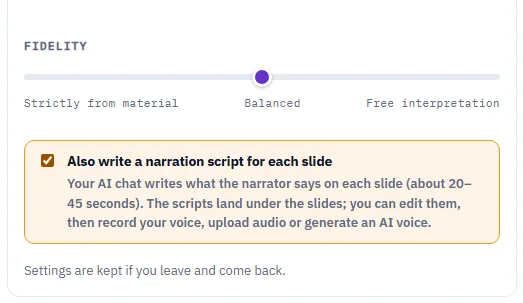
When you add slides From my AI chat, tick Also write a narration script for each slide under 1 · What to make. The chat then writes a short script for each slide, about 20 to 45 seconds. LMSable remembers this choice for the course.
After you paste the answer, the panel sums it up, for example 12 slides · 12 scripts · about 7 min of narration. The scripts go to the Narration panel of each slide, never onto the slide itself. Then you can edit them and add the audio.
Narration for the whole presentation
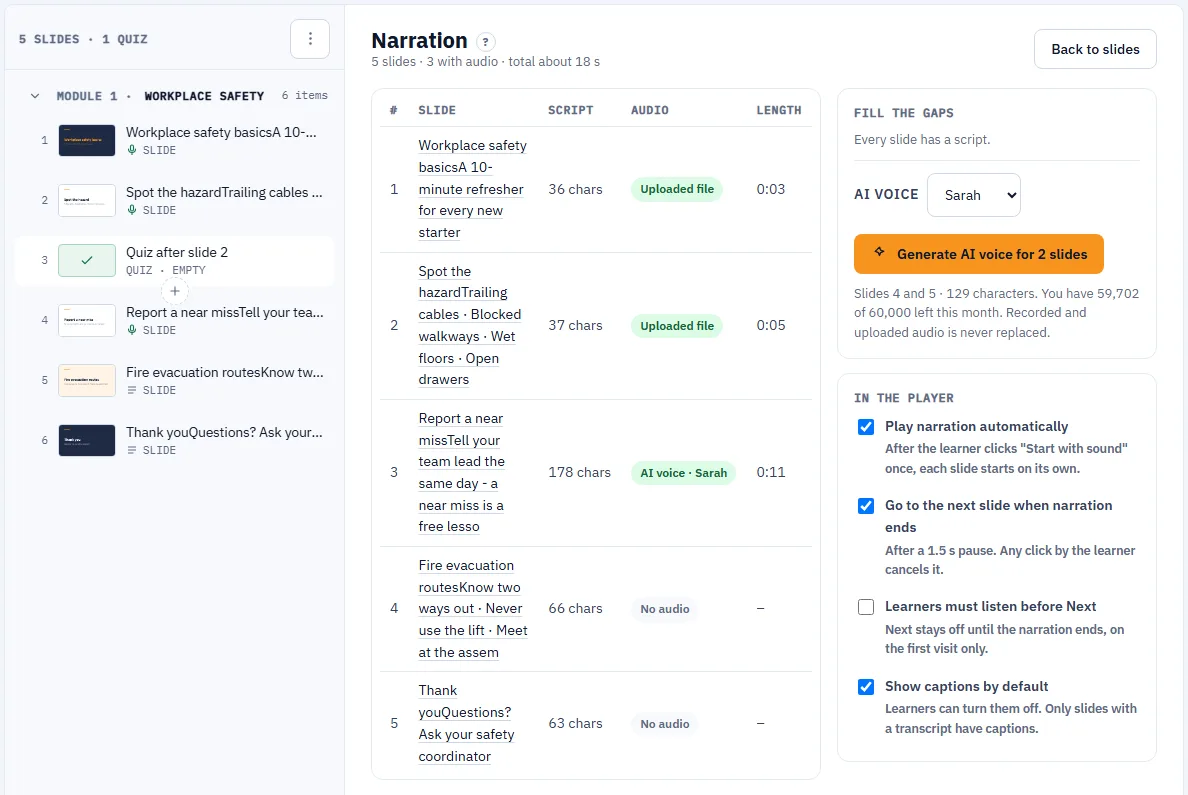
Open the course menu (⋯ in the header of the list) and pick Narration. The overview opens on the stage:
- A table of all slides with the number, the slide, the script length (or No script), the audio and its length. Click a slide title to open it.
- The header counts the slides, the slides with audio and the total time.
- Back to slides closes the overview.
Write the missing scripts with AI chat
- Click Write N missing scripts with AI chat. It works for slides from a PDF too: the prompt sends the title and the text of each slide without a script.
- Click Copy prompt and send it in Claude, ChatGPT or Gemini.
- Paste the answer into Paste the AI response and click Add scripts. Each script goes to the slide with its number.
Existing scripts stay as they are, unless you tick Replace existing scripts.
Generate the AI voice for many slides
- Pick the voice in AI voice.
- Read the cost line. It lists the slides and the characters, and how many characters you have left.
- Click Generate AI voice for N slides. The slides are done one by one, with a progress bar. Cancel stops after the current slide.
Only slides with a script and no audio are included, and slides whose AI voice is older than the script. Recorded and uploaded audio is never replaced. If your characters run out, the queue stops with a message.
In the player
These options apply to the whole course. The defaults:
- Play narration automatically: on. After the learner clicks Start with sound once, each slide starts on its own.
- Go to the next slide when narration ends: on. The next slide comes after a 1.5 second pause. Any click by the learner cancels it.
- Learners must listen before Next: off. When on, Next stays off until the narration ends, on the first visit to a slide only.
- Show captions by default: on. Learners can turn them off.
What learners see
Narration plays in the course player, in Preview as learner and in the SCORM and HTML export.
- On the first slide with narration, learners see Start with sound. Browsers do not play sound before the learner clicks something.
- The narration bar has play and pause, a position slider, the time, Captions, Transcript and the volume.
- The transcript panel highlights the sentence being spoken.
- Keys: Space pauses and plays, N turns captions on and off, T opens the transcript.
- On a phone, captions show under the slide, not on it.
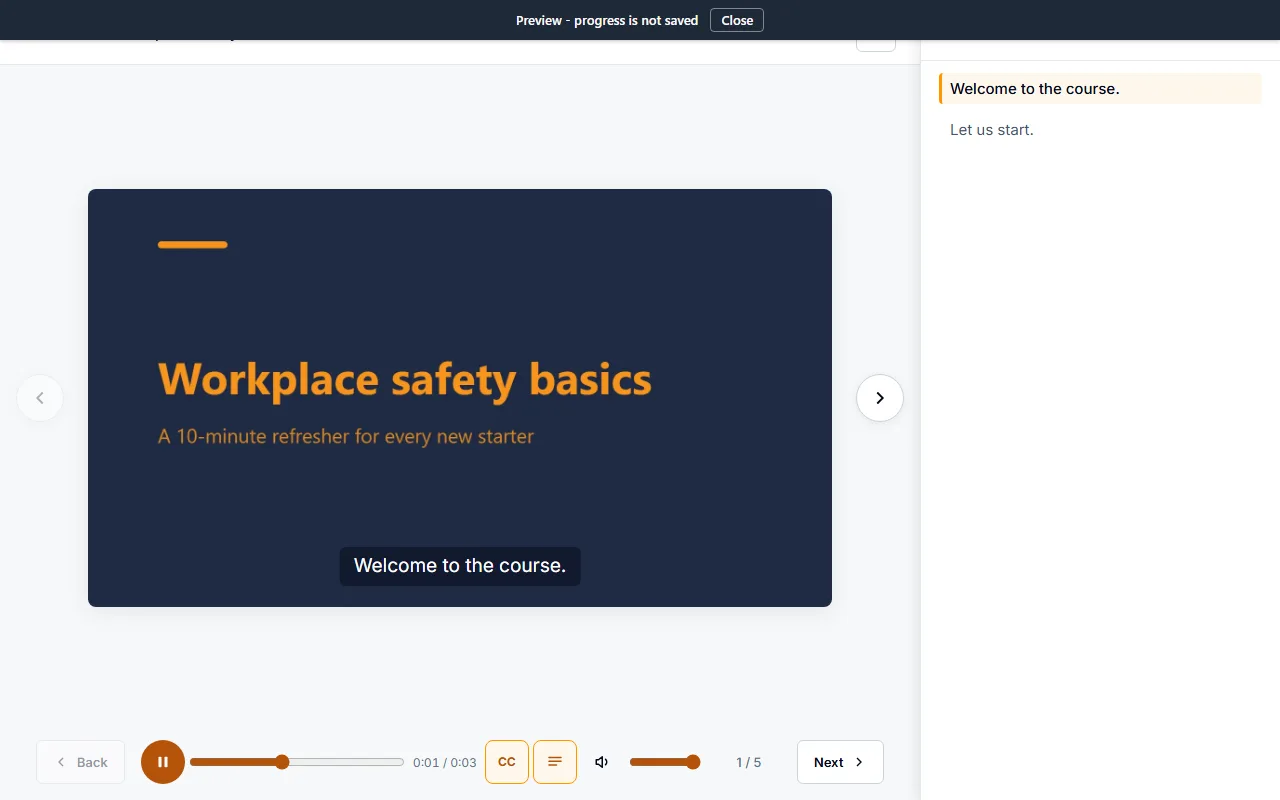
The player's narration labels are in Polish for a Polish course and in English for other languages.
Your data
When you generate an AI voice, the script text is sent to ElevenLabs, our text-to-speech provider. Recording and uploading do not send anything to ElevenLabs. Details: Your data and privacy.
If something goes wrong
- Generate AI voice is greyed out: write the script first. If its tooltip says AI voice is part of the Pro plan, see Free and Pro.
- Not enough characters left: shorten the script or wait for next month (Pro). On Free the allowance does not renew.
- The audio file is rejected: use MP3 or M4A, up to 8 MB. A file renamed to .mp3 that is really another format is rejected.
- The microphone does not work: allow microphone access in the browser, close other apps that use the microphone, or upload an MP3 instead.
- A deleted slide lost its narration: deleting a slide, or Replace all slides, also deletes its audio.
Next
Check the narration as a learner: Preview your course. Then export your course to SCORM 1.2.