Preview your course
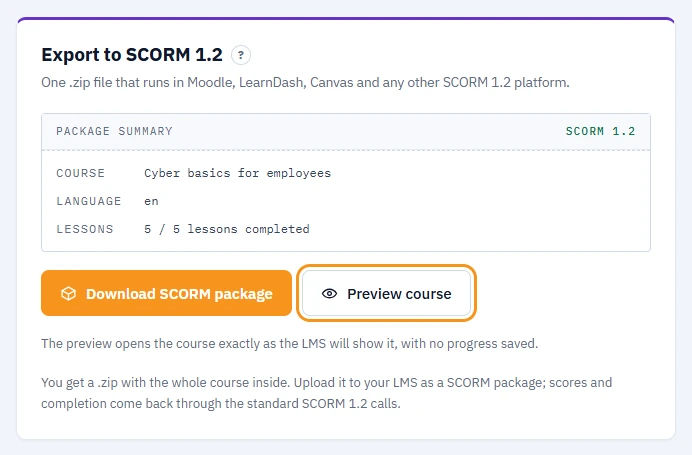
Preview builds the same package the export would, then opens it in a new tab so you can check it before downloading anything.
Steps
- On the Export step, click Preview course. Until the course is exported for the first time, the Lessons step also shows Preview course in its next-steps panel, unless you dismissed it. The button is greyed out until at least one lesson has content.
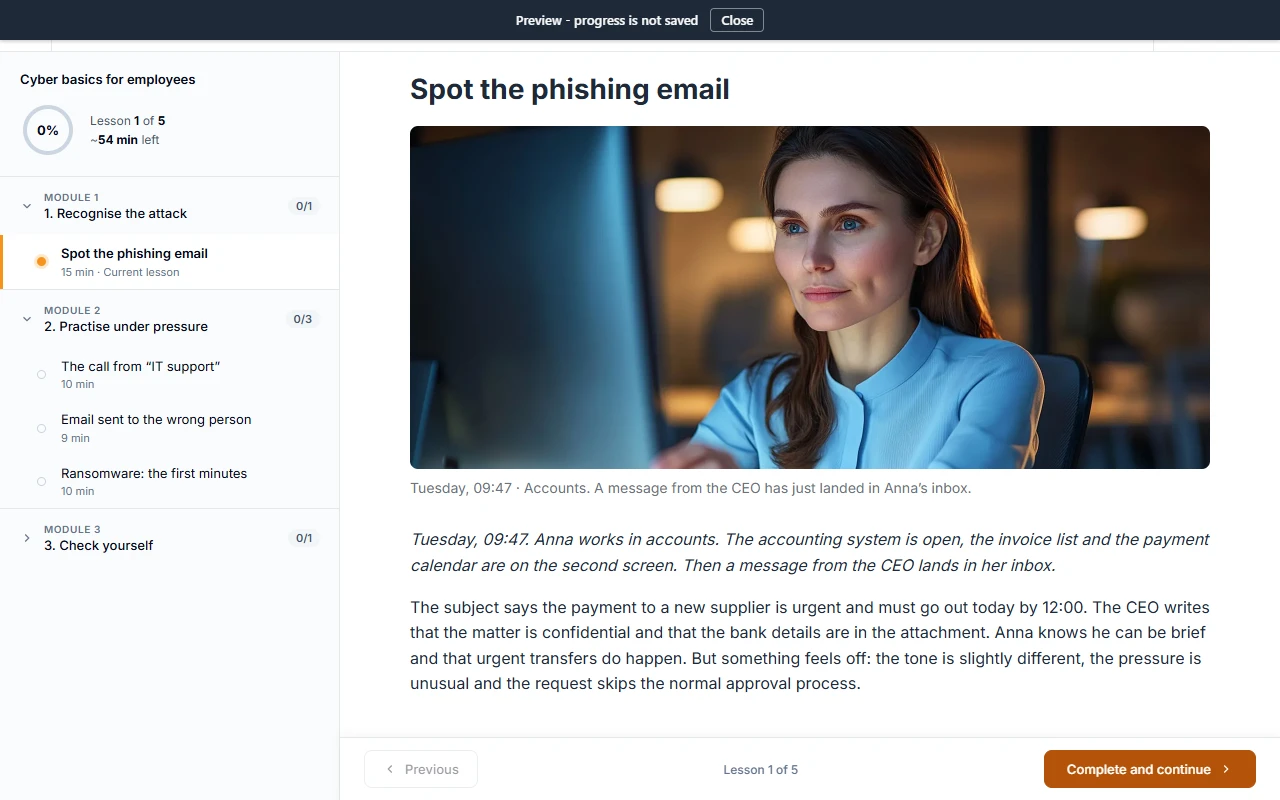
- A new tab opens with the course as the LMS will show it.
- Work through lessons the way a learner would, including quizzes.
- Close the tab and go back to the builder to make changes.
You can also preview a single lesson while editing it, with Save and preview in the lesson editor.
What you should see
The preview looks and behaves like the exported course. No progress or score is saved - it is only there for you to check the content.
If something goes wrong
- "The preview cannot be built yet": the same problems that block export block the preview, for example a lesson that reports nothing to the LMS. The preview page lists what to fix.
- The preview looks outdated: it is rebuilt every time you click Preview course, so make sure you saved your latest changes first.
Next
Once the preview looks right, export the course: Export your course to SCORM 1.2.