Edit presentation slides
A Presentation course is built from slides on the Slides step, between Branding and Lessons.
Before you start
Create the course with the Format set to Presentation: see Create a course and describe it.
Steps
- Open the Slides step. Under How should the slides be built?, pick one of two options.
- To keep your own design, pick Use the slides from my presentation. In PowerPoint, choose File, Export, PDF, then click Choose PDF file and pick the file. Every page becomes a slide; animations and transitions are not kept.
- To get restyled slides from your AI chat, pick Let AI redesign my presentation. The Slides from your AI chat panel opens:
- Set Number of slides (5 to 40), or tick Let AI decide and the chat picks the number to fit your material.
- Under Source for the slides, pick I will attach my deck (attach the PDF or PPTX in the chat), Paste text or No source.
- Click Copy prompt, run it in your AI chat, and paste the whole HTML answer into Paste the AI response.
- Click Create slides. Once the course has slides, you choose Replace all slides or Add at the end instead.
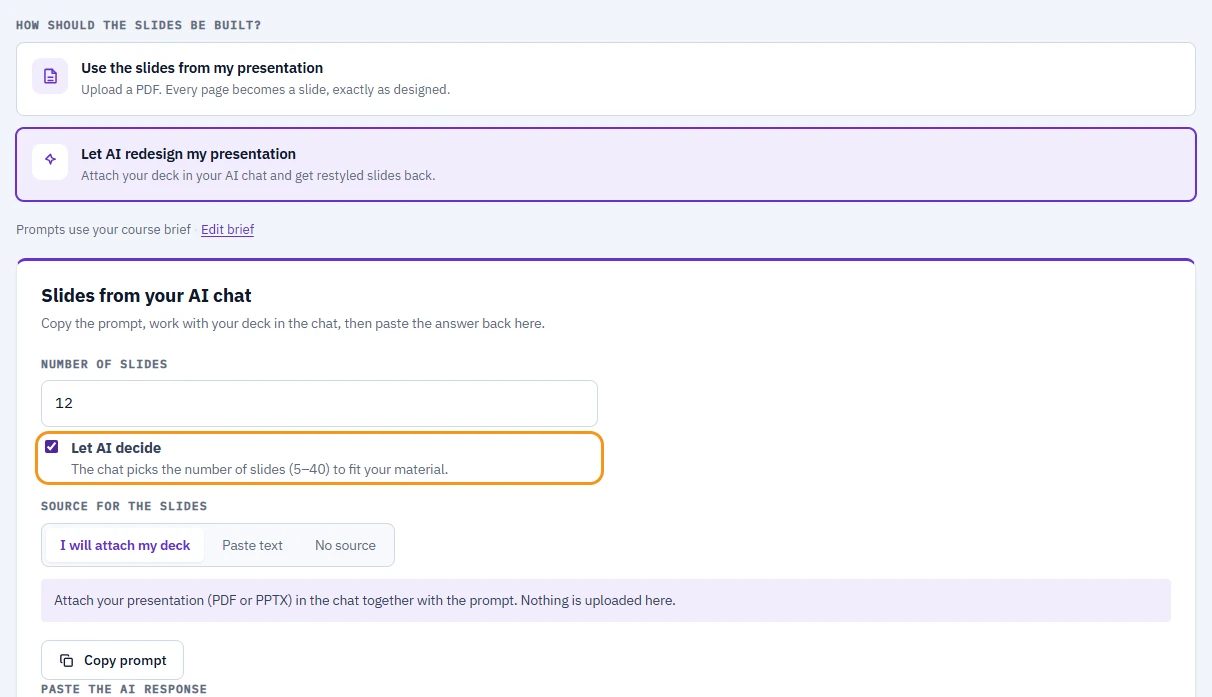
The AI option: set the number of slides or let the chat decide.
- Manage the slides in the grid. Click a slide to open the full preview. Its Slide actions menu has Move up, Move down, Rename, Add interaction after, Add quiz after, Start a new section here and Delete. Replace PDF swaps the whole deck after you confirm, including names and interactions added between slides.
- On the Lessons step, sections appear as modules. Click a title to rename a module or a slide, use Move up and Move down in the ⋯ menus, and click Add time next to a slide to set its time. Add lesson in a module adds a quiz, a test, an interaction or a text lesson between the slides; pick its type in the type pill. Manage slides takes you back to the Slides step.
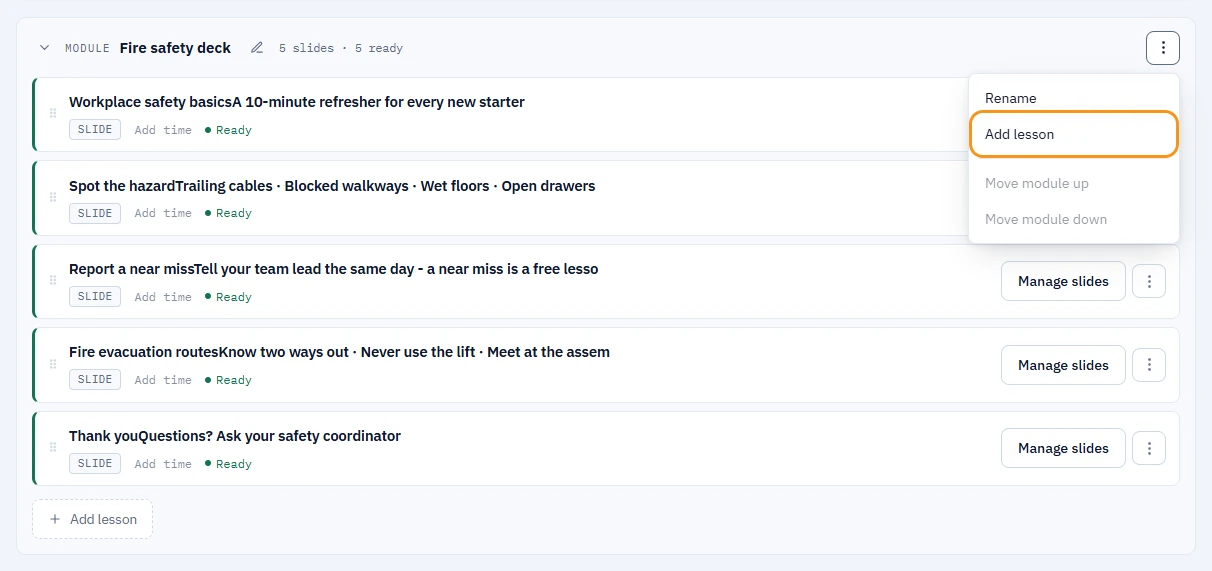
In a presentation, Add lesson puts a quiz or an interaction between slides. - Export the course on the Export step, the same way as any other course.
What you should see
The Slides step counts your content, for example 12 slides · 2 interactions. On the Lessons step each module header shows a count such as 8 slides · 3 ready.
If something goes wrong
- The AI answer is rejected: paste the whole HTML document from your chat, without any text before or after it.
- You cannot delete a slide on the Lessons step: slides are removed on the Slides step.
Next
Export the finished course: Export your course to SCORM 1.2.