Build a quiz lesson
A quiz or test lesson reports a score to your LMS, unlike other lesson types.
Before you start
Give a lesson the type Quiz or Test on the Lessons step: click the type pill under the lesson title and pick Quiz or Test. Or use a lesson that already has that type.
Steps
- On the Lessons step, click Edit quiz next to the quiz or test lesson.
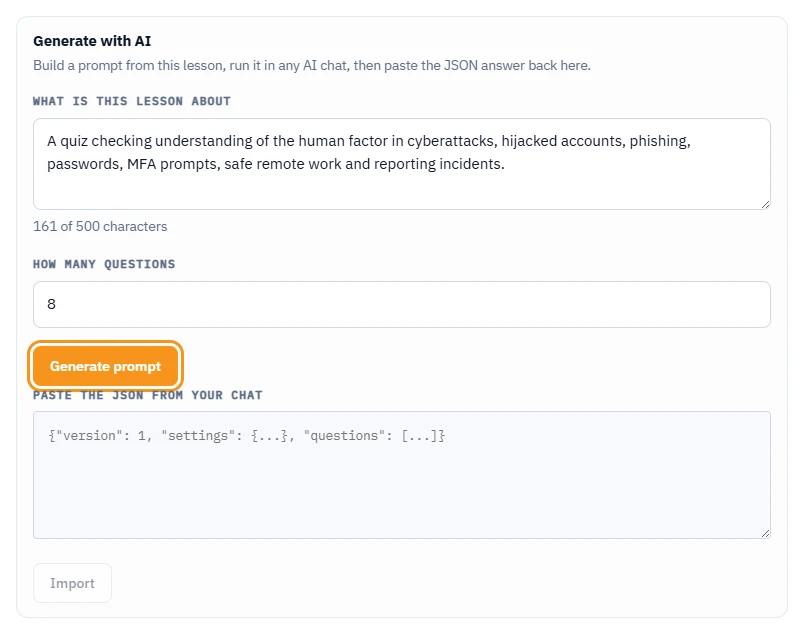
- A new quiz opens on the Generate with AI tab. In What is this lesson about (What does this test cover for a test lesson), describe the lesson in one or two sentences, up to 500 characters. The prompt is built from it. While the field is empty, a warning says the AI prompt will be generic.
- Set How many questions (3 to 20), then click Generate prompt.
- Click Copy prompt, paste it into your AI chat, and run it.
- Copy the whole answer and paste it into Paste the JSON from your chat.
- Click Import. The editor switches to the Write questions tab - check the questions it loaded. If the editor already had questions, importing replaces all of them after you confirm. Only the questions change: the settings you chose in the editor (shuffling, attempts, pass mark and time limit) stay as they were.
- Click Save, or Save and preview to try the quiz right away.
You can also add or edit questions by hand on the Write questions tab, without generating them from AI. A quiz that already has questions opens on this tab. The quiz settings and the Save buttons stay visible on both tabs.
Time limit
Set Time limit (minutes) in the quiz settings to give learners 2 to 120 minutes for the whole quiz; 0 means no limit. The start screen tells learners about the limit before they begin, and a clock counts down above each question, with a warning when one minute is left. When the time runs out, the quiz ends on its own: unanswered questions count as wrong, the score is reported to your LMS with the unanswered questions marked as wrong, and the attempt is used up. Reloading the page during a timed quiz keeps the clock running but starts the answers again, so tell learners not to refresh. If your training must meet WCAG, leave the limit at 0 - a time limit is hard for learners who use a screen reader or need more time.
What you should see
The lesson is marked Ready in the lesson list. Save and preview shows the quiz the way a learner will see it.
If something goes wrong
- Import is greyed out: paste the full JSON answer from your AI chat - an empty box cannot be imported.
- Save does not save and a red panel appears: the panel lists every problem that blocks saving, for example a question without text or without a correct answer. It shows up the first time you click Save or Save and preview, so a new quiz does not open with a list of errors, and each item disappears as you fix it.
- The imported quiz has fewer questions than you asked for: rerun the prompt in your AI chat and import again.
- You need more questions than the quiz allows: a quiz holds up to 40 questions today. Once Pro launches, the cap depends on your plan (12 on Free, 40 on Pro; accounts created before launch keep 40 for 12 months) - see Free and Pro: what is included.
Next
Export the finished course: Export your course to SCORM 1.2.