Change the player labels
Replace the default text on the player's buttons and screens with your own wording, for example Mark as done instead of the standard button text, or your company's term for a module.
Before you start
The course language decides the default labels: see Course language and writing courses in other languages. Your own labels replace the defaults for that one language only.
Note
Custom player labels are a Pro feature. On any plan you can type and save them; they are applied to Preview course and to the export when the course owner's plan includes them. Pro is not on sale yet, and until it launches every account keeps today's terms, which include custom labels. Accounts created before launch keep those terms for 12 months. See Free and Pro: what is included.
What you can rename
The fields are grouped the same way as in the Builder:
- Player: the Contents button, Previous button, Next button, the Complete the lesson button and Complete the course button, the lock messages shown when a quiz, test or interaction is not done yet, the Lesson counter ({n}, {t}), Time left ({v}), Module, the Search placeholder and Dark mode.
- End screen: the Title, All items completed, Some items left ({d}, {t}), the Back to the course page button and the Review the course button.
- Quiz: the Start button, Check button, Continue button, Score heading, Passed, Not passed, Try again button, No attempts left and the four time-limit texts.
- Scenario: the Continue button, Start over button, Step and Result heading.
An interactive book course shows up to 34 fields. A Presentation course shows fewer, because its player has fewer buttons. The quiz labels apply to quiz and test lessons in the course, not to the free-standing quiz tool.
Steps
- Open the course and click the Settings step.
- Open Player labels.
- Type your text into any field. Each empty field shows its default in the course language as grey placeholder text, so you can see what you are replacing.
- Leave a field empty to keep the default. A label can have up to 60 characters.
- Click Save settings at the bottom of the step.
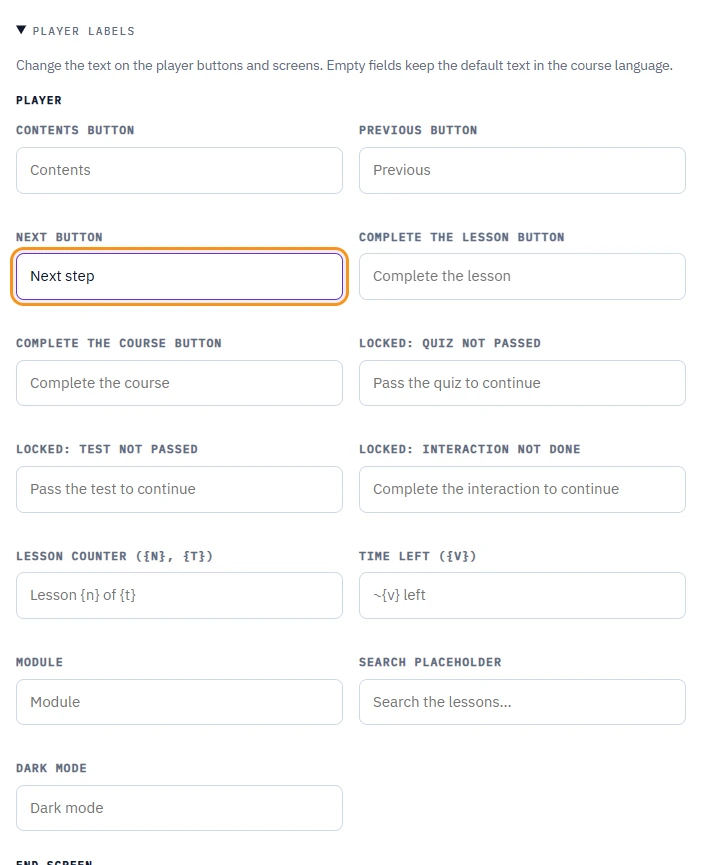
Some captions contain tokens in braces, such as Lesson counter ({n}, {t}) or Time limit notice ({time}). Keep those tokens in your text: the player fills in the real values, so Part {n} of {t} becomes "Part 3 of 8".
To undo everything, click Reset to defaults, then Save settings.
A course in a language we do not list
The player speaks seven languages: English, Polish, Czech, Spanish, German, French and Portuguese. If your audience reads another language, for example Italian:
- Set the course language to the closest of the seven.
- Write the lessons in your language as usual. LMSable never checks the language of your text.
- Fill in every field under Player labels in your language and save.
Learners then see your language on every visible button and message. Keep in mind what stays in the base language you picked:
- the resume question (Continue where you left off?, Continue, Start over),
- the Locked status in the table of contents and other lesson status words,
- the question counter and answer feedback such as Correct in quizzes, and the video messages in scenarios,
- the labels read by screen readers, which are left out on purpose so they stay consistent.
If something goes wrong
- The section shows a Pro note and your labels do not appear in the preview: the course owner's plan does not include custom labels yet. The text is saved and applies once it does.
- Your change does not show: click Save settings, then open Preview course again.
Next
Choose free or step-by-step navigation: Set how learners move through the course.