Set how learners move through the course
Decide whether learners can open lessons in any order, and whether the player shows a table of contents and a search box. All of it lives on the Settings step of the Course Builder.
Before you start
The options apply to the SCORM export and to Preview course. They do not change your lessons, so you can switch them at any time.
Steps
- Open the course and click the Settings step.
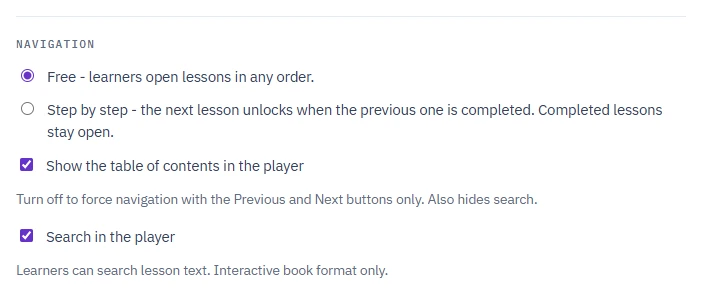
- Under Navigation, pick one of the two options:
- Free - learners open lessons in any order. This is the default.
- Step by step - the next lesson unlocks when the previous one is completed. Completed lessons stay open.
- Leave Show the table of contents in the player ticked, or untick it to hide the lesson list.
- In an interactive book course, leave Search in the player ticked, or untick it to remove the search box.
- Click Save settings at the bottom of the step.
Step by step navigation
With Step by step, the first lesson is open and the rest show as Locked in the table of contents. A lesson is completed when the learner moves on from it or passes its quiz or test. Then the next lesson unlocks.
Completed lessons stay open: a learner who finished lessons 1 to 4 can revisit lesson 2, then return to lesson 5. Only lessons past the first unfinished one stay locked.
Completed lessons are saved with the learner's bookmark, so they stay open after a break. If an old bookmark points at a locked lesson (you switched to step by step after learners had started), the player starts at the first lesson.
In a Presentation course, the same rule applies to the slide list and the arrows.
Tip
Step by step combines with Lock the next lesson until the interaction reports completion on the same step: such an interaction lesson counts as completed only once it reports completion.
Table of contents and search
Show the table of contents in the player controls the lesson list panel and its button. With it off, learners move only with the Previous and Next buttons. In an interactive book this also hides search, because the search box lives in that panel. In a Presentation course it hides the slide list.
Search in the player lets learners search lesson text. It exists only in the interactive book format, so a Presentation course does not show this checkbox. With it off, the package has no search index and no search box. In step by step mode, results in locked lessons are marked as locked.
The resume question
When a learner comes back to a course they have already started, the player asks Welcome back - Continue where you left off? with two buttons, Continue and Start over. It appears only if they got past the first lesson or completed something, in both players and in all seven course languages.
- Continue opens the lesson they stopped at. Pressing Esc does the same.
- Start over clears the learner's place and the list of completed lessons in the player, and opens the first lesson. In step by step mode, lessons lock again.
Start over does not lower anything your LMS already recorded. The completion status and score stay as they are; the player only resets the learner's place and what it shows as done.
In Preview course there is no LMS, so the place is kept in your browser and the question can appear there too.
If something goes wrong
- Your changes do not show in the package: click Save settings before you export or preview.
- There is no search box in the exported course: check that Search in the player and Show the table of contents in the player are both ticked, and that the course is an interactive book.
Next
Rename the player buttons and messages: Change the player labels.