Manage your courses
My courses is the page you land on after signing in to Course Builder. It lists every course on your account and is where you create, open, duplicate and delete them.
Find a course
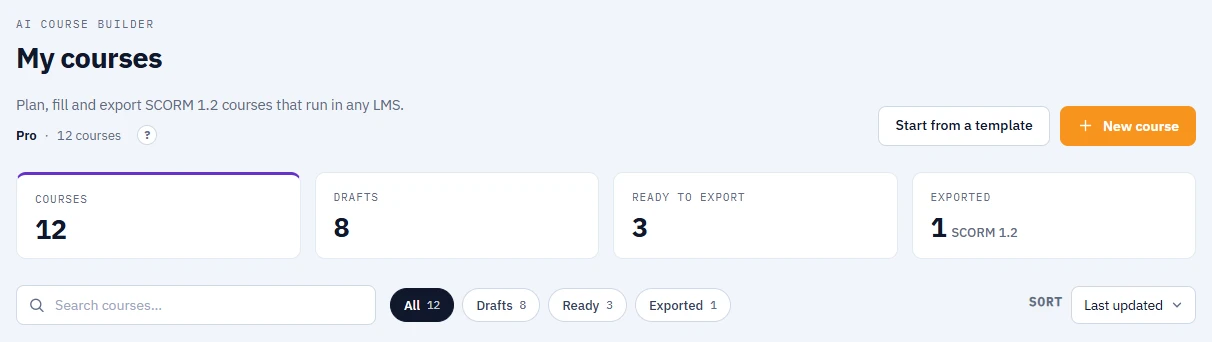
- The line under the page title shows your plan and how many courses you have, for example Free plan and 3 of 5 courses. On Pro it shows only the number of courses.
- The summary row counts Courses, Drafts, Ready to export and Exported.
- Type in Search courses… to filter by title.
- Filter by status with All, Drafts, Ready and Exported. A course is a draft until every lesson has content, then it is ready; once you export it, it counts as exported.
- Sort by Last updated (the default), Name (A–Z) or Progress.
Each card shows the format (Interactive book or Presentation), the title, how many lessons have content, the status and when you last worked on it.
Create a course
- Click New course, at the top of the page or on the first card in the grid.
- Enter a Course title, pick a Format and a Content language, and adjust Branding if you want.
- Click Create course. The new course opens straight away.
Details of each field: Create a course and describe it.
Open a course
Click anywhere on the course card, or open its actions menu (the three-dot button) and click Open.
Duplicate a course
Open the actions menu on the card and click Duplicate. The copy appears on My courses as Copy of plus the original title. What is and is not copied: Duplicate a course.
Delete a course
- Open the actions menu on the card and click Delete.
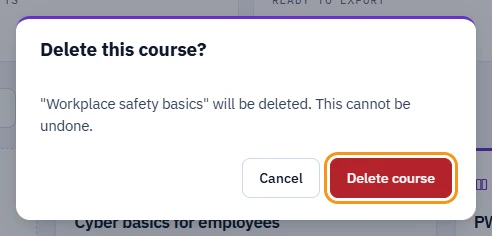
- LMSable asks Delete this course? and warns that the course "will be deleted. This cannot be undone."
- Click Delete course to confirm, or Cancel to keep it.
Warning
Deleting is permanent. There is no trash and no undo. Together with the course, LMSable removes all its lessons, its saved versions, its review links with their comments, and every image and file uploaded to it.
A SCORM package you already downloaded stays on your computer and keeps working in your LMS. If you might need the course again, export it or download a version from Versions on the Export step before you delete it.
Course limit
Every course, including a duplicate, counts towards your plan's course limit. When you reach it, creating or duplicating shows "Limit of projects reached. Delete an old one to create a new one." Deleting a course frees its place straight away. Exact numbers: Course and storage limits.
If something goes wrong
- "Could not delete the course.": reload the page and try again. If the course is still on the list, contact support.
- A course you did not delete is missing: a course that was never exported can be removed after a period without activity - see How long we keep your courses.
- No courses match your search: clear the search box and set the filter back to All.
Next
Start building: Create a course and describe it.