Duplicate a course
Duplicate turns a course into an independent copy with the same settings, table of contents, lessons and files. Editing the copy never changes the original, and the other way round.
Before you start
You have room under your plan's course limit - a copy counts as a new course.
Steps
- Open My courses.
- On the course you want to copy, open its actions menu (the three-dot button) and click Duplicate.
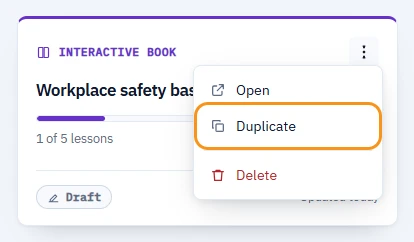
What you should see
The card shows Duplicating… briefly, then the list reloads and a message reads Course duplicated as «Copy of [title]». With the default sort, the new course appears at the top of the list. You stay on My courses - the copy does not open automatically.
What is copied
- All course settings, the table of contents and every lesson, in the same order.
- Images, files and slide images used by the lessons, and the source details of stock photos.
What is not copied
- Versions, review links, reviewer comments and the lesson history behind Undo in Fix with AI. The copy starts with a clean history.
- Export status. The copy counts as a course that was never exported, so the rule for removing inactive, never-exported courses applies to it until you export it.
- The copy's title starts with Copy of and you can rename it like any other course.
If something goes wrong
- "Limit of projects reached. Delete an old one to create a new one." You are at your plan's course limit. Delete a course you no longer need, then duplicate again.
- The duplicate fails partway through. Nothing is left behind - either the copy is created in full or not at all. Try again; if it keeps failing, contact support.
Next
Rename the copy and start editing it from Create a course and describe it.