Fix with AI: turn review comments into corrections
Turn open reviewer comments on one lesson into a prompt for your own AI chat, then review and accept the changes it suggests before anything is saved.
Before you start
- The lesson has at least one open reviewer comment tied to that lesson (not a General comment).
- The lesson still has the same title and position as when the comment was left. If you renamed or moved it, LMSable no longer matches the comment to it.
- The lesson is a block lesson with content. Slide, quiz, test, interaction, scenario and video lessons are not supported - edit those manually instead.
- LMSable never sends your lesson to any AI service. You copy the prompt into your own chat and paste the answer back.
Steps
- Under a comment in Ask for review, click Fix with AI. The prompt covers every open comment on that lesson, not just the one you clicked.
- On step 1. Copy prompt, click Copy prompt, then Next.
- Paste the prompt into your AI chat (ChatGPT, Claude, Gemini or similar) and run it.
- Copy the whole answer and paste it into the box on step 2. Paste answer, then click Check answer.
- On step 3. Review changes, look at each proposed change. Untick Accept this change for anything you do not want.
- Click Apply N change(s).
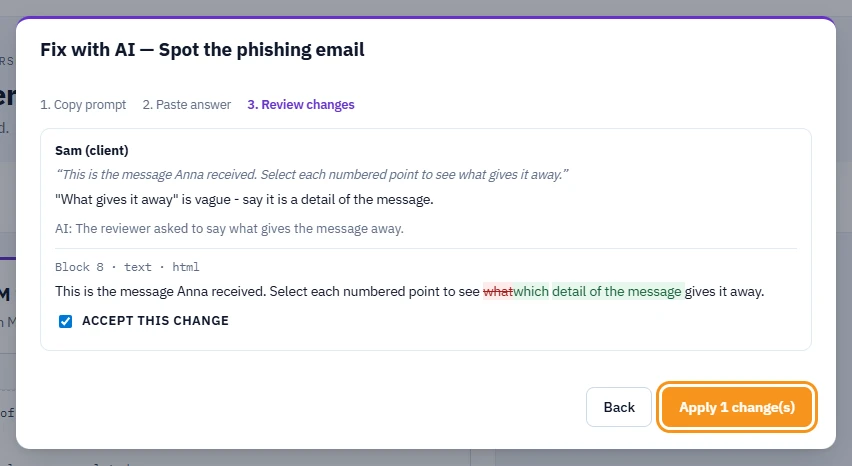
What you should see
A message reporting how many changes were applied. The lesson is saved right away. Comments behind an applied change are marked Resolved and tagged Fixed with AI in the Ask for review list. A bar with an Undo button appears for 30 seconds after applying.
Changes that need your attention
- A change that adds a link or changes formatting is unticked by default - review it yourself before accepting.
- A proposal marked AI suggests fixing this manually needs a manual edit; click Edit lesson to open the block editor.
- If the AI's answer has no proposal for a comment at all, LMSable shows No proposal for this comment with the same Edit lesson button.
If something goes wrong
- "The lesson changed. Generate a new prompt." Someone edited the lesson after the prompt was built. Click Generate a new prompt and start again.
- There is no Fix with AI button under a comment. The comment is general, the lesson is not a block lesson, or the lesson's title or position changed after the comment was left. Use Edit lesson if it is shown, or edit the lesson manually.
- "Some accepted changes touch the same content. Uncheck one of them." Two accepted proposals edit the same place. Untick one and apply again.
- "N more comment(s) did not fit in this prompt." Only 40 comments fit in one prompt. Apply this batch, then run Fix with AI again for the rest.
- You want to undo an applied change. Click Undo on the bar shown right after applying - it puts the lesson back as it was before the changes and reopens the comments that were marked resolved. After 30 seconds the bar disappears. If you saved a version before applying, you can restore it from Save and restore versions, but that replaces the whole course, not just this lesson.
Next
Reply to the reviewer or ask for another look: Ask for review.