Add free stock photos to a lesson
Instead of uploading your own picture, you can search a library of free photos from inside the block editor and add one with a single click. Photos come from Pexels.
Before you start
Open a lesson in the block editor and add a block that takes an image: Image, Image section, Two columns, Slider or Hotspot image. The scene image in a branching scenario has the same option. See Edit a lesson with blocks.
Steps
- In the block's image field, click Stock photos. Upload takes you back to uploading your own file.
- Type a word in Search free photos and press Enter or click Search. Short, simple words in English work best.
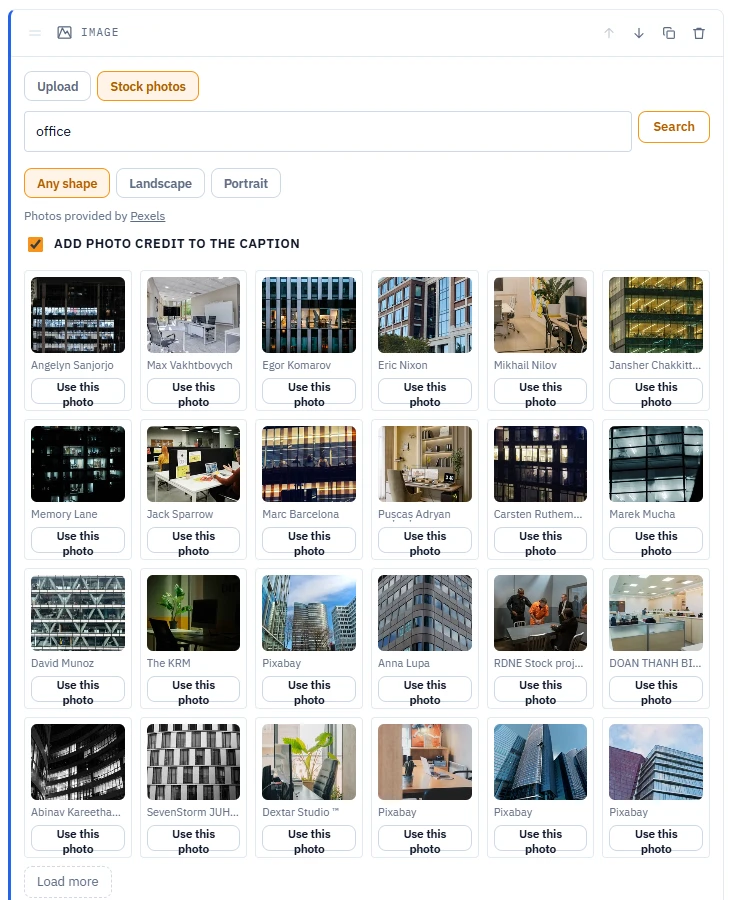
Search results in an Image block. - Narrow the results with Any shape, Landscape or Portrait if you need a particular shape.
- Click Load more under the grid to see further results.
- Click Use this photo under the photo you want. The button reads Adding... while LMSable saves the photo to your course.
What you should see
The photo appears in the block, and the field switches back to Upload, where Replace image and Remove image work as for any uploaded image. The photo is stored in your course like an uploaded image, so it is packed into the SCORM export and keeps working if the photo is later removed from Pexels.
Photo credit and licence
- In the Image and Slider blocks, Add photo credit to the caption is ticked by default. It adds a line such as "Photo: Jane Doe / Pexels" to the caption, after any caption you already wrote. Untick it before you click Use this photo if you do not want the credit. You can edit or delete the caption text later like any other caption.
- Blocks without a caption field do not show the checkbox and add no credit.
- The note under the results reads: "Free to use in your courses, including commercial ones. Do not use photos of recognisable people in a negative context or rely on logos shown in a photo." The Pexels licence link next to it opens the full terms.
- With each photo, LMSable keeps a record of where it came from: the provider, the author, the photo's page and the licence. The record is copied when you duplicate the course.
Limits
- A stock photo counts as an image in your course. It uses one of your plan's image slots and part of the course's media allowance, like an upload: see Images, files and media limits.
- A photo must fit within the 2 MB image limit. LMSable downloads a smaller version automatically when the large one is too big.
- Each search shows up to 24 photos, and Load more stops after 10 pages.
- You can run up to 30 searches and add up to 20 photos per minute.
If something goes wrong
- "No photos found. Try a simpler word, in English.": use one or two general words, for example "meeting" instead of a full sentence.
- "This photo service is busy right now. Try again in a moment.": wait a few seconds and search again. If another provider is available, the message offers a Search ... instead button.
- "This photo is larger than the 2 MB limit." or "This photo is no longer available.": pick another photo.
- "Image limit reached", or a message about the media limit for this course: the course has used all its image slots or its media allowance. Remove images you no longer use with Manage uploads, then try again.
- There is no Stock photos button: the image field shows only Upload when stock photos are not available on your account.
Next
See what every block can do: Block reference.