Edit a lesson with blocks
Lessons of type Lesson are built in the block editor, from ready-made pieces such as text, statements, accordions and images. Interactions and quizzes are built outside the block editor.
Before you start
On the Lessons step, click Edit next to a lesson of type Lesson. An empty lesson opens the block editor with Start your lesson and the full block palette. A lesson that already holds raw HTML without blocks opens a text field instead; Switch to block editor starts an empty block lesson, and saving it replaces that HTML.
Steps
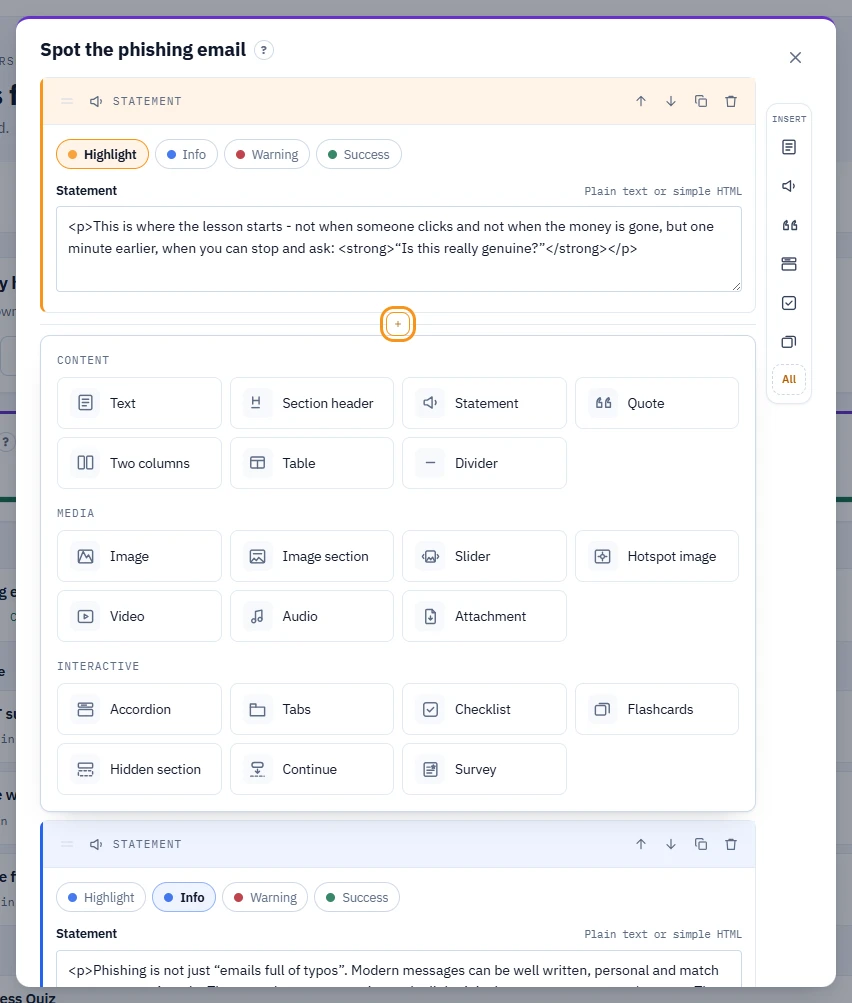
- Click the + control between two blocks to open the block palette there, or use the Insert bar: its icons add a frequently used block at the end, and All opens the full palette at the end of the lesson.
- Pick a block type. The palette groups them as Content, Media and Interactive - see Block reference for the full list.
- Fill in the block's fields. Most blocks are plain text or simple HTML.
- Drag a block by its handle to reorder it (or use the up and down arrows), and use the block's own controls to duplicate or delete it. Undo reverts the last change.
- Click Save, or Save and preview to check the result immediately.
What you should see
Once saved, the lesson is marked Completed in the lesson list. Save and preview saves the lesson and opens a preview of it on top of the editor; Back to editor returns you to the blocks.
If something goes wrong
- A block disappeared after saving: blocks with nothing in them - for example an image block with no file attached, or a video block with no address - are removed when you save.
- The lesson looks different from what you expected: use Save and preview to see the rendered result rather than judging from the editor form alone.
- Save is greyed out: the lesson has no blocks yet - add at least one.
Next
See every block type and when to use it: Block reference.