How to update an e-learning course without starting over
Key takeaway: when a procedure changes, do not rebuild the course. List the changes, find the lessons they touch and fix only those. In our example, two rule changes touched 4 of 10 lessons: two edited by hand, a new quiz and one line in the scenario. The other 6 lessons stayed as they were, and the old version of the course is saved.
Training based on a procedure has a short shelf life. The procedure gets a new version, a deadline becomes shorter, a limit goes up, and the course your team finished last month now teaches the old rules.
The usual reactions are both expensive. Rebuilding the course from scratch throws away lessons that were reviewed and still correct. Patching the SCORM package by hand fixes this export, but not the course it came from. This post shows a third way: update only what changed, keep the old version, and publish the course again.
The example continues our SOP training post. There we turned an 18-page complaints procedure into a course with 10 lessons. Now the procedure has a version 2 with two rule changes, and we update that course.
Start from the list of changes, not from the course
Before you open the course, write down what changed in the source. Ideally, the new version of the procedure includes a list of changes. If it does not, compare the two versions and write your own list before you touch the course. Our version 2 has a change table with two rows:
- Acknowledging a complaint: within one working day instead of two.
- Refund limit for an agent without approval: €100 instead of €50.
Each row is a fact you will search for in the course. Two rules sound small, but a deadline can appear in a lesson title, in the lesson text, in quiz questions and in the feedback of a practice scenario. The change table tells you what to look for. The course tells you where it lives.
Match each change to the lessons it touches
Different lesson types need different fixes. This is the part that saves the most time:
| Lesson type | What usually changes | Fastest fix |
|---|---|---|
| Text lesson | A number, a deadline or a name in one or two paragraphs | Edit by hand in the lesson editor |
| Quiz | Questions and answers that test the old rule | Generate the questions again from the new source, or edit one question if only one is affected |
| Scenario | One scene or one piece of feedback that mentions the old rule | Fix that line by hand and keep the rest of the story |
| Lessons the change does not touch | Nothing | Leave them alone |
The last row matters as much as the others. In our example, 6 of the 10 lessons did not mention either rule. Rebuilding the course would have meant generating, reading and approving those 6 lessons again for no gain.
Why not just edit the SCORM package?
A SCORM package is a zip file with HTML, JavaScript and a manifest, so you can open it and change a number in a text editor. It works once. The problem is that the package is an output, not the source. The next time anyone exports the course from the authoring tool, the old rule comes back, because the course itself was never updated. Hand edits can also break the package if they touch the files that report scores and completion.
Change the course, then export a new package. The package is always rebuilt from the current course, so it cannot drift away from it.
How to update the course in LMSable
The video above shows every step on the real course. In short:
- Save a version first. On the Export step, open the Versions panel, click Save version and name it after the old procedure, for example "Procedure v1". If you ever need the old course back, Restore brings it back, and LMSable saves the current state as a Backup before it does.
- Update the source material. On the Course step, under Source material, replace the old text with the new procedure if you use Paste text: LMSable then puts version 2 into every prompt it writes for this course. If you use I will attach a file, nothing is stored in LMSable: the prompts ask you to attach the document in your AI chat, so from now on attach the new PDF, not the old one.
- Fix text lessons by hand. Open the lesson about deadlines and change "two working days" to "one working day", including the lesson title. Then change the limit in the lesson on refunds. Lesson titles tell you where each rule lives, so you only open the lessons that need it.
- Generate the quiz again. Open the quiz, click Generate with AI, then Generate prompt, and run the prompt in your AI chat. If the course uses I will attach a file, attach the new procedure; with Paste text, the source is already in the prompt. When you import the answer, LMSable asks before it replaces the questions. Your quiz settings, such as the pass mark and attempts, stay as they were. Before you publish, check every new question and its correct answer against the new procedure: AI drafts the questions, you approve them.
- Fix one line in the scenario. Importing a new scenario replaces every scene, so do not regenerate it for a small change. In our scenario only one piece of feedback mentioned the old limit: "€129 is above your €50 limit". We changed it to €100 and kept the story.
- Check what changed. Back in Versions, the saved version now says how many lessons differ from the current course. Click Preview to open the old version exactly as learners saw it and compare. The counter tells you how many lessons changed, not whether every old value is gone, so read the changed lessons once more as well.
- Publish again. Download a new SCORM package, or new HTML files for your intranet. LMSable saves each export as a version too, so you always know which package went out.
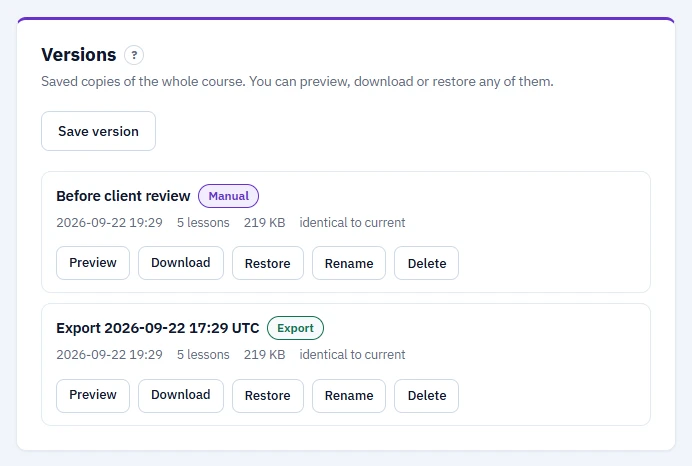
The result: 4 of 10 lessons changed
After the update, the Versions panel showed "4 lesson(s) differ from current" next to Procedure v1. That number matched the plan exactly:
- 2 text lessons edited by hand: the deadline (title, description and three places in the text) and the refund limit (one place).
- 1 quiz generated again: 8 new questions based on version 2, with the same settings.
- 1 scenario with a single line of feedback changed.
- 6 lessons untouched.
Before exporting, we checked the new package for the old values. "Two working days" appears once, as a wrong answer in the quiz, which is exactly where it belongs. Old euro amounts that are still valid under version 2, such as a €50 voucher within the agent's limit, stayed in place. A quick search like this is worth doing after every update, because a rule can hide in places you did not open.
Replacing the package in your LMS
Because you updated the same course rather than a copy, LMSable exports the new package with the same course identifier as the old one. That identifier says which course the package belongs to. It does not decide what your LMS does with the new file. In most LMSs you replace the package inside the existing activity instead of creating a new one: in Moodle, for example, you upload the new file in the settings of the SCORM activity that already holds the course. If you add the package as a new activity instead, the LMS treats it as a new course, whatever the identifier says.
What happens to learners who already started or finished the old version is a separate question, and the answer depends on the platform and its settings. Before you replace a package in a live course, run it as a test learner. Our checklist for testing a SCORM package covers launch, completion and scores, and uploading SCORM to Moodle covers the Moodle side.
Also decide whether the change needs retraining. A shorter deadline that every agent must follow probably does: tell people what changed, or assign the course again. A corrected typo does not.
When to duplicate the course instead
Update the same course when the new version replaces the old one. Use Duplicate when both versions must exist side by side, for example the same training for another country with its own limits. A copy is a separate course with its own versions, and it exports as a new course in your LMS. On the Free plan, which includes 1 course, you update in place; duplicating needs room for a second course.
Keep your course up to date
The steps are in the Help Center: save and restore versions, duplicate a course and build a quiz lesson.
Build your course for free in our SCORM authoring tool. The Free plan includes one course with up to 20 lessons, up to 5 saved versions per course, and export to SCORM 1.2 or HTML.
FAQ
Will learners lose their progress when I replace the package?
It depends on your LMS and its settings, not on the package. Some platforms keep existing attempts, some start a new attempt, and some ask you to choose. Test the replacement with a test learner before you do it in a live course.
Should I regenerate the whole course from the new procedure?
Usually not. Regenerating replaces lessons that were already reviewed and still correct, and you have to check all of them again. Regenerate a quiz when its questions test the changed rules, and fix everything else by hand.
How do I know which lessons I changed?
Save a version before you start. When you finish, the Versions panel shows how many lessons differ from that version, and Preview opens the old course so you can compare it with the new one.