Start a course from a template
Copy a ready-made course from the template gallery to your account and change it into your own.
What is in the gallery
The gallery at /templates shows free templates built with the same blocks, branching scenarios and quizzes as the Course Builder. There are six:
| Template | Format |
|---|---|
| Cyber basics: a mini course for employees | Mini course: one lesson, three branching scenarios and a quiz |
| Email sent to the wrong person | Branching scenario |
| The call from "IT support" | Branching scenario |
| Ransomware: the first minutes | Branching scenario |
| Security Awareness Quiz | Quiz |
| Spot the phishing email | Lesson |
Each card shows the format, a short description, the number of lessons and the estimated time. Use the filter buttons (All, Scenarios, Lessons, Quizzes, Courses) to narrow the list.
Before you start
You do not need an account to browse or preview templates. To copy one, you need to sign in to Course Builder with an email code. See Sign in with an email code.
Steps
- Go to
/templates. Click Preview on a card to open the course in a window, or click the template title to open its page.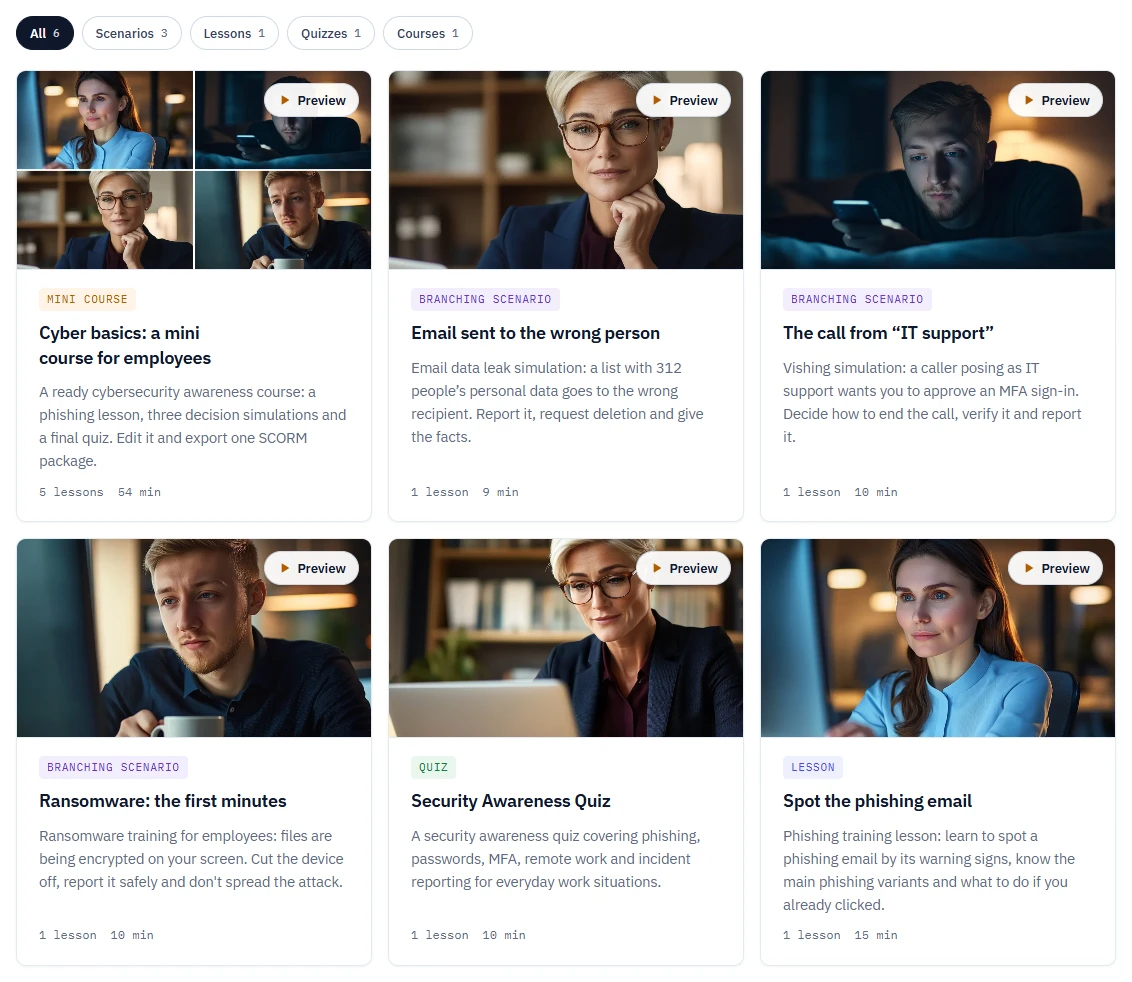
The template gallery. Preview opens the course without an account. - On the template page, click Preview the course. The course runs in the same player your learners get in the SCORM package. Progress is not saved. The page also lists the audience, the goal and every lesson.
- Click Use this template.
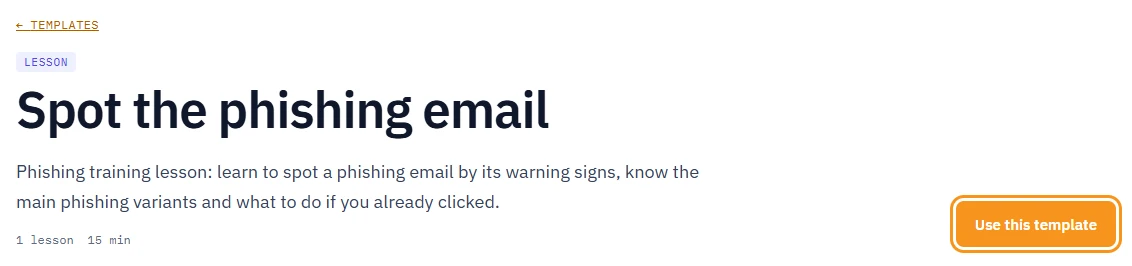
Use this template copies the course to your account. - If you are not signed in, LMSable asks for your email and sends you a code. After you sign in, the copy finishes on its own.
What you should see
The new course opens in the Course Builder with the message "Template copied to your account. Edit anything, then export it as SCORM." It appears in My courses like any course you created yourself.
The copy keeps the template's title, language, audience, goal, lessons and images. Lessons keep their type: lesson (blocks), quiz or branching scenario. If your account has branding and the template does not set its own, your branding is applied. Saved versions are not copied, so the new course starts with an empty version history.
The copy is yours: rename it, edit, add or delete lessons and change the branding, as in any other course. The template in the gallery does not change.
If something goes wrong
- "Limit of projects reached. Delete an old one to create a new one." A copy counts as a new course. Delete a course you no longer need on My courses, or check the plans. See Course and storage limits.
- "This template has more lessons than your plan allows in one course." The template is larger than your lessons-per-course limit.
- "This template uses a lesson type that is not available for your account yet." One of the lesson types in the template is not switched on for your account.
- No Use this template button. Copying is switched off at the moment. You can still preview the course.
Next
- Change the content: Fill a lesson.
- Download the result: Export your course to SCORM 1.2.