Generate H5P content with AI
Pick an activity type, describe the topic, and the tool hands you a prompt. Paste it into your own AI chat, bring back the answer, and download a standard .h5p file. No sign-in required.
Before you start
You need an AI chat account of your own (ChatGPT, Claude, Gemini or Copilot). The tool never talks to an AI on your behalf - it only builds the prompt and, later, the file.
Steps
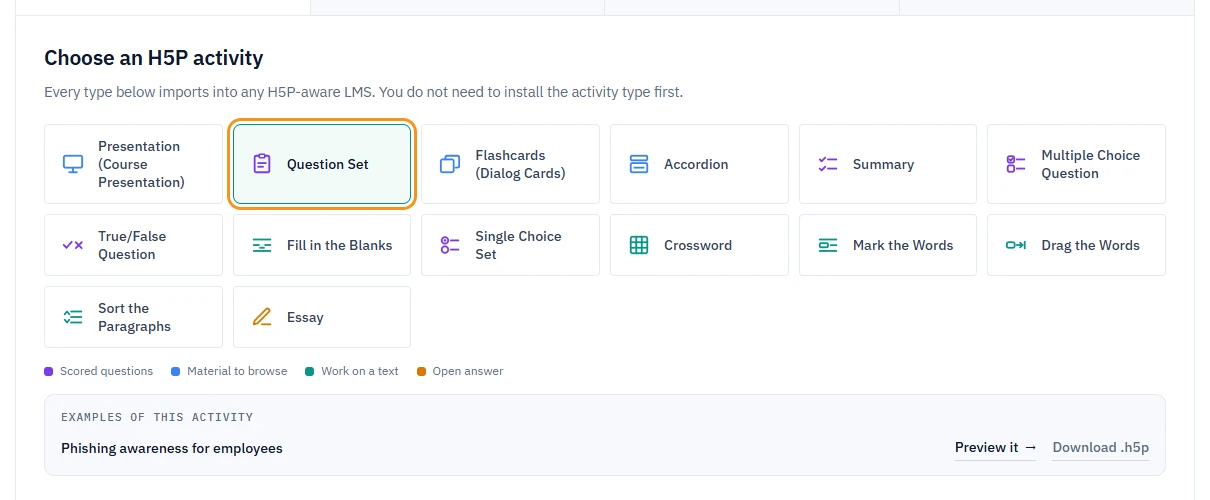
- Open the H5P Generator and, under Choose an H5P activity, pick one of the 14 activity types, for example Question Set or Presentation (Course Presentation).
- Fill in Topic (required). The other fields - Target audience, Level, Content language, Learning objective, Narrative tone - have defaults or are optional, but sharpen the result.
- Optional: under Source material (optional), choose whether the chat writes from general knowledge, from text you paste (up to 20,000 characters), or from a file you attach directly in the chat window.
- Click Generate the prompt.
- Click Copy prompt & open ChatGPT (or Claude, Gemini, Copilot), or Copy only if you already have a chat open.
- Paste the prompt into your AI chat and run it.
- Copy the whole answer, come back and click Continue, I have the AI response.
- Paste it into Paste the response from your AI and click Check and preview. The button becomes active once the automatic security check has passed.
- On the preview screen, click Download .h5p.
Note
Downloading opens a small window with an optional e-mail field. You do not have to fill it in - click Download .h5p to get the file either way. Your address is stored only if you also tick the box for occasional e-mails.
What you should see
- Your content is ready with a preview of the content. The preview is a simplified view of the questions and text, not the H5P player itself.
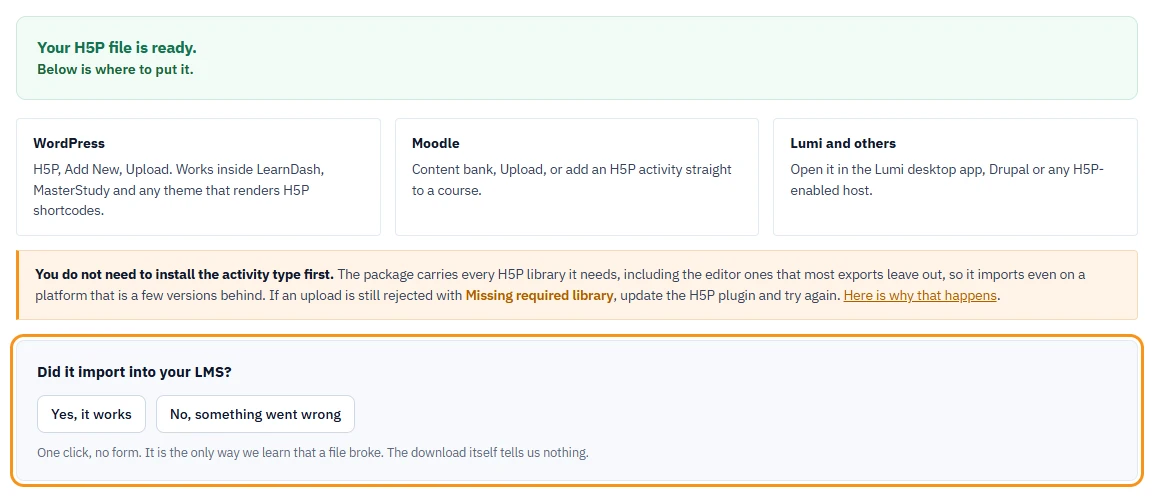
- After download, Your H5P file is ready. and a file named after the activity's title, such as
gdpr-in-daily-office-work.h5p, in your downloads folder.
If something goes wrong
- "We found a formatting problem in the AI response": your chat's answer did not match the expected format. Click Copy correction notes, paste them back into your AI chat, and ask it to return a corrected answer.
- Your LMS rejects the file with "Missing required library": the package already carries every H5P library it needs, including editor libraries. Update the H5P plugin on your platform and upload the file again.
- Generate the prompt is greyed out: the Topic field is empty - it is the only required field on the brief.
- Check and preview or Download .h5p is greyed out: wait for the automatic security check on the page to finish. For Check and preview, also make sure you pasted the answer.
Next
See Upload an H5P file to Moodle or WordPress for where to put the file, or check the limits and how long files are kept: Free tool limits and file retention.