Create a SCORM quiz
Describe the quiz, draft it with your own AI chat, fix every question by hand, then download a SCORM 1.2 package. Your LMS gets the score, the pass or fail status and every answer.
Before you start
You need an AI chat account of your own (ChatGPT, Claude, Gemini or Copilot). Nothing is sent to an AI from this tool's side - you copy the prompt yourself.
Steps
- Open the AI Quiz Generator. Under 1. Describe the quiz, fill in Topic, and optionally Questions, Language, Tone and Pass mark (%).
- Optional: set Primary color and Accent color. If your plan includes them, you can also set a logo (Logo URL (HTTPS)) and a Custom font; without an account these fields stay locked.
- Click Build my prompt.
- Click Copy prompt, then Open ChatGPT (or Open Claude, Open Gemini, Open Copilot).
- Paste the prompt into your AI chat and run it.
- Copy the whole JSON answer, come back, paste it into Paste the JSON from your chat, and click Open in the editor.
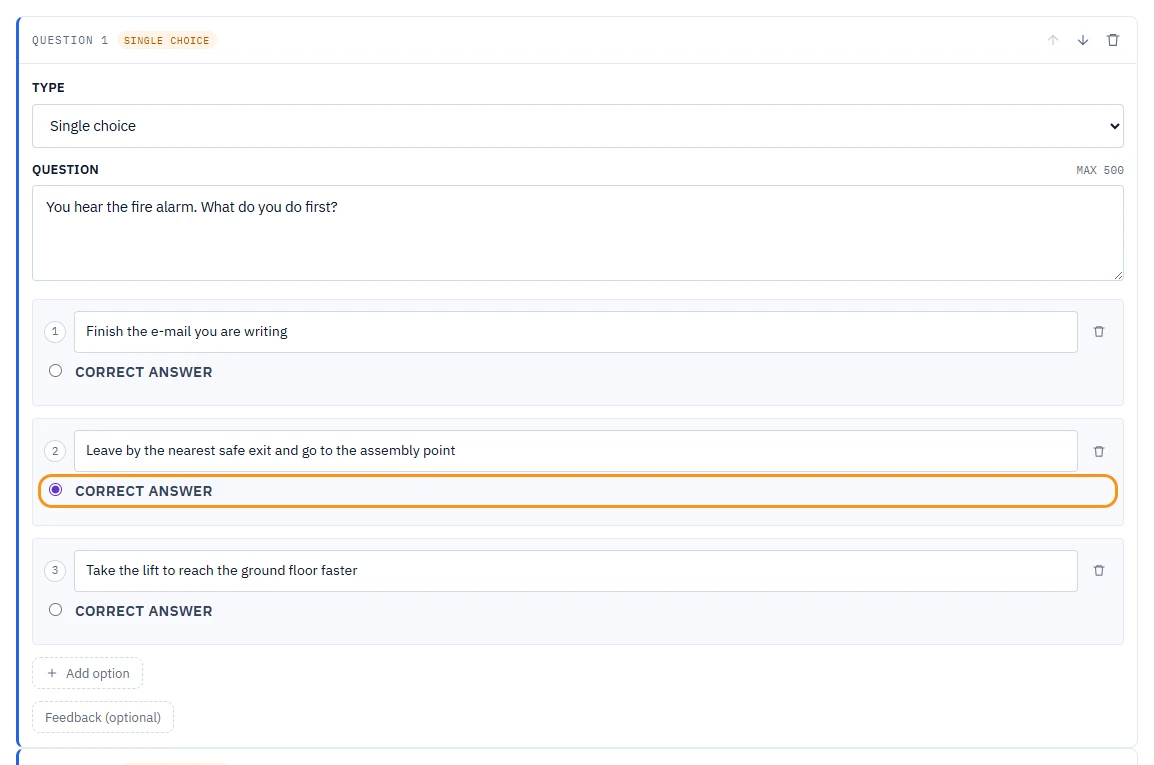
- On 3. Review and edit the questions, fix the wording or answers, then click Preview the quiz.
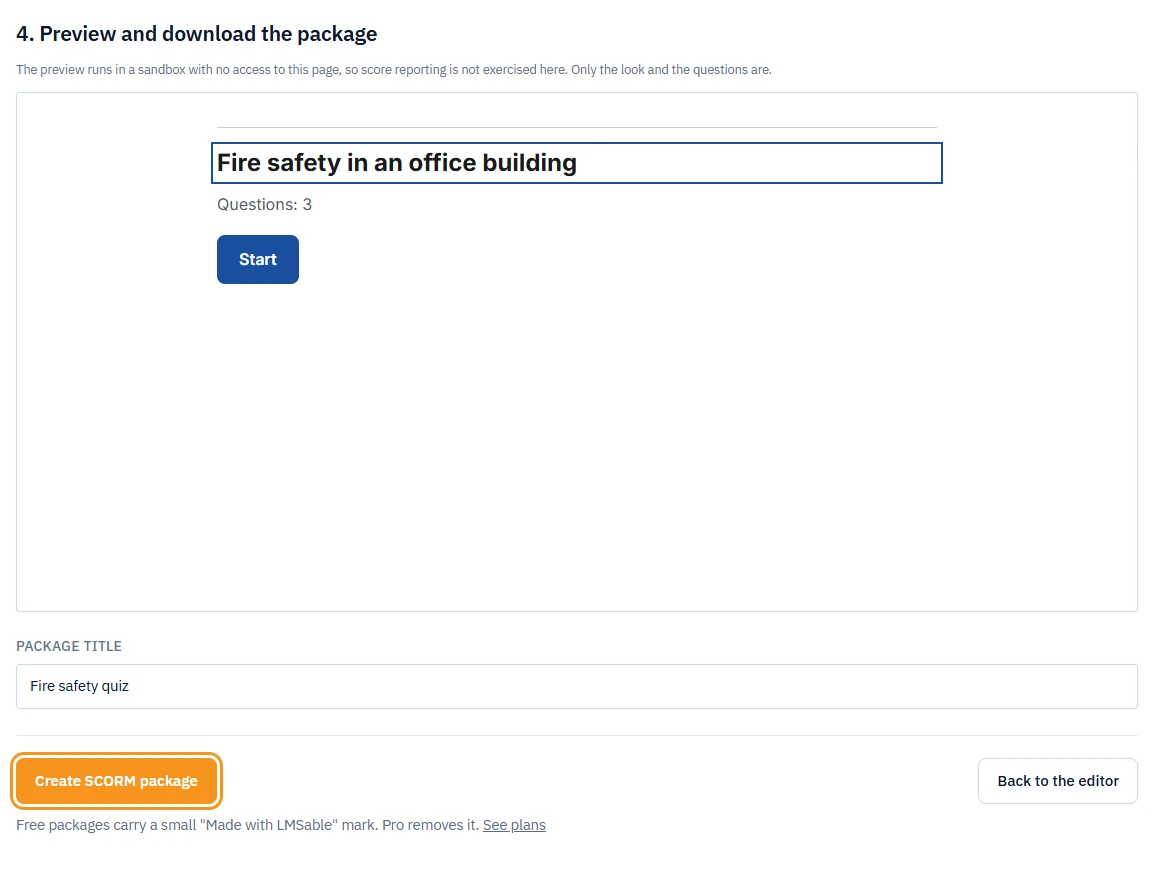
- Set the Package title and click Create SCORM package.
- Click the Download button on the result to save the
.zipfile.
Note
Without an account, the quiz has up to 12 questions and is built from the topic alone. More questions (up to 40) and your own source material (pasted text or a file attached in the chat) depend on your plan: today every signed-in LMSable account has them; after Pro launches they are part of Pro. See Free and Pro: what is included.
What you should see
A green Your package is ready. message with the file size, question count and pass mark, and a Download button. The download link works for 30 days. Without a signed-in account, the package carries a small "Made with LMSable" mark.
What your LMS sees
- Score and status: the percentage and a passed or failed status against your pass mark, set when the learner submits the quiz.
- An answer per question: what the learner chose, the correct answer, and whether they matched.
See What your LMS will report for the exact SCORM fields.
The pass mark is written into the package twice - as masteryscore in the manifest and as the threshold the player itself uses - because some LMS platforms ignore the manifest value.
If something goes wrong
- Build my prompt is disabled: the Topic field is empty, or the automatic security check has not finished yet.
- Open in the editor rejects the pasted JSON: the answer from your AI chat does not match the expected format; ask your AI chat to correct and resend the JSON.
- Preview the quiz or Create SCORM package is disabled: the editor still lists a problem with a question, the security check has not finished, or (for Create SCORM package) the Package title is empty.
- "Daily limit reached: 10 exports per day from one IP address.": try again the next day, or contact us.
- The page reloaded while you were editing: your brief and questions are saved as a draft in this browser and come back when you open the tool again on the same device.
Next
Upload the package to Moodle, or see the plan limits for question count and branding: Free and Pro: what is included.