Create a certificate
Fill in the recipient, the course and the date, pick a template, and download a print-ready A4 certificate. Everything happens in this browser tab - names and logos are never uploaded.
Before you start
Nothing to prepare. Every field is optional; empty fields show a light placeholder in the preview and stay out of the download.
Steps
- Open the Certificate Generator. Under 1. The certificate, choose a Document type (Certificate of Completion, Certificate of Achievement, Diploma or Certificate of Attendance), then fill in Recipient full name, Course or training name, Completion date, Hours and Organization or issuer.
- Under 2. Signature and logo, optionally upload a Logo (PNG, JPG or SVG), and fill in Signatory name, Signatory title and Certificate number. Click Generate to create a certificate number such as
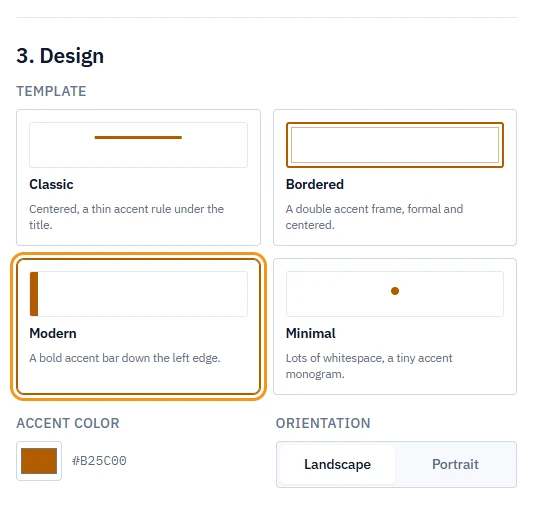
CERT-2026-4821(the current year and four random digits). - Under 3. Design, pick a Template - Classic, Bordered, Modern or Minimal - set the Accent color, and choose Landscape or Portrait orientation.
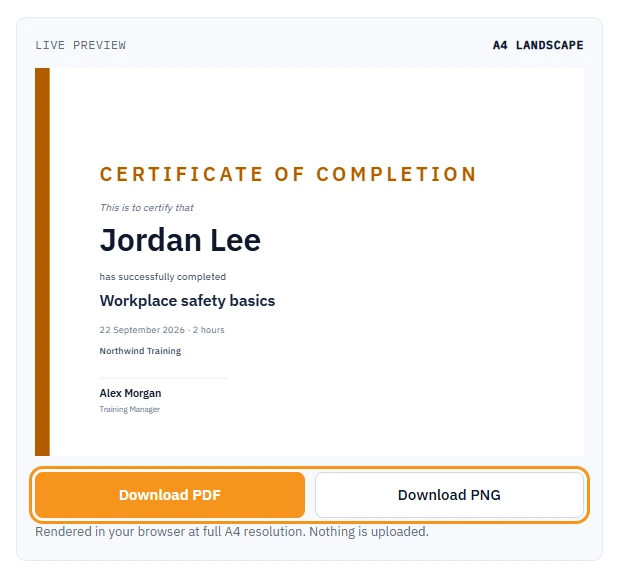
- Watch the Live preview update as you type.
- Click Download PDF or Download PNG.
What you should see
Your browser saves certificate.pdf or certificate.png - an A4 page, in the orientation you chose, at print resolution.
Templates
| Template | Look |
|---|---|
| Classic | Centered, a thin accent rule under the title |
| Bordered | A double accent frame, formal and centered |
| Modern | A bold accent bar down the left edge |
| Minimal | Lots of whitespace, a tiny accent monogram |
If something goes wrong
- "The certificate could not be captured. Please try again.": retry the download.
- "That logo could not be read. Try a different file.": use a PNG, JPG or SVG file for the logo.
Next
Need a course to go with the certificate? See Create a course and describe it or check the free tool limits: Free tool limits and file retention.