Convert PowerPoint to SCORM
Save your deck as PDF, drop it here, and download a SCORM 1.2 package. Every slide is converted in your browser - your original file is never uploaded; only the finished slide images are sent to build the package.
Before you start
Save your presentation as PDF first: in PowerPoint use File, Save as, PDF; in Google Slides use File, Download, PDF. Animations and transitions flatten to their final state, so what prints on the slide is what the package shows.
Steps
- Open the PowerPoint to SCORM tool and, under 1. Your presentation (PDF), drop your PDF onto Drop a PDF here, or click it to choose a file. The PDF can have up to 25 pages.
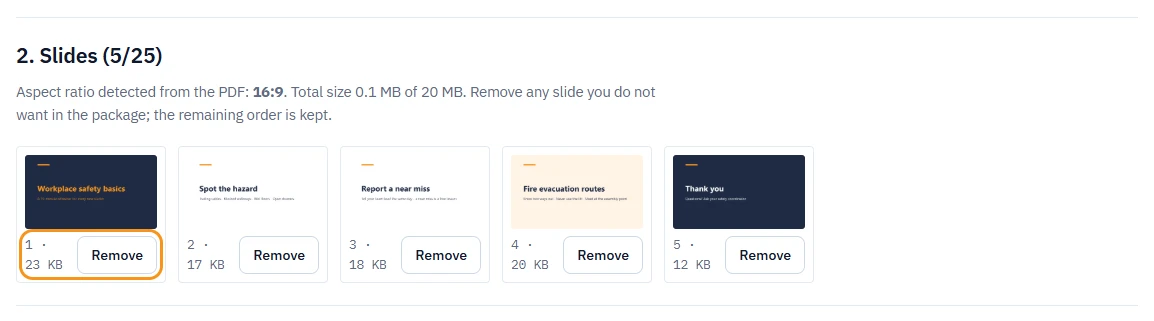
- Wait for the conversion progress to finish. Each slide becomes a thumbnail under 2. Slides.
- Remove any slide you do not want with its Remove button. The remaining order is kept.
- Under 3. Package details, set Course title and Player language. Optionally check Fade between slides (off by default).
- Click Create SCORM package. The button becomes active once the automatic security check has passed.
- Click the Download button on the result (labelled with your file name) to save the
.zipfile.
What you should see
A green Your package is ready. message with the slide count, the file size, and a Download button. The download link works for 30 days. If you are not signed in to LMSable, the package carries a small "Made with LMSable" mark; signed in, your account's plan decides (today no account gets the mark).
What goes into the package
- Every slide, in the original order, at the aspect ratio detected from the PDF.
- Text and images exactly as they print.
- Navigation, a progress bar, bookmarking and a completion signal to the LMS.
- An optional fade between slides, if you checked it.
What a PDF cannot carry
- Animations and slide transitions flatten to their final state; a build sequence lands as the finished slide.
- Embedded video and audio do not survive the export to PDF.
- Speaker notes stay in your original file and are not shown to the learner.
- Clickable links inside a slide are not guaranteed to work; the player chrome handles navigation.
If something goes wrong
- "Please drop a PDF file": the file is not a PDF. Save your deck as PDF first.
- "... slide(s) exceed the 800 KB per-slide limit.": simplify those slides (fewer full-page photos) and convert again, or remove them.
- "The slides exceed the 20 MB limit. Remove a few slides.": remove a few slides, or split the presentation into two packages.
- "This PDF has ... pages. The limit is 25 slides - split the file into smaller parts.": the tool converts up to 25 pages per package. Split the PDF and convert each part.
- "The export failed. Please try again.": wait a moment and click Create SCORM package again.
- "Daily limit reached: 10 exports per day from one IP address.": try again the next day, or contact us.
Next
Upload the package to Moodle, or check how long the download link stays valid: Free tool limits and file retention.