Comment on a shared course
Someone shared a course with you using LMSable. Here is how to look through it and leave comments - you do not need an account.
Before you start
Open the link you were sent. It works in any browser, on desktop or mobile.
What you see
- A bar at the top with the course title, "Shared for review by the author" and the date of the version you are looking at.
- The course itself in the middle of the page.
- If the link allows comments, an Add comment button in the top right.
If the link only says "Preview shared by the author" in the bar, you can look at the course but cannot comment - ask the sender for a review link instead of a view-only link.
Leave a general comment
- Click Add comment.
- Enter Your name.
- Under Scope, leave General selected, or choose Current lesson (it shows the lesson's title) if you want the comment tied to the lesson you are viewing. It stays greyed out until the course reports which lesson is open.
- Write your comment in the Comment box (up to 2000 characters) and click Send.
Comment on a specific place
- Select any text in the course and click the Comment button that appears next to it, or click Point at element and then click the image, video or block you mean.
- The comment panel opens with your selection shown above the comment box, and Current lesson is selected when the lesson is known.
- Enter Your name, write the comment and click Send.
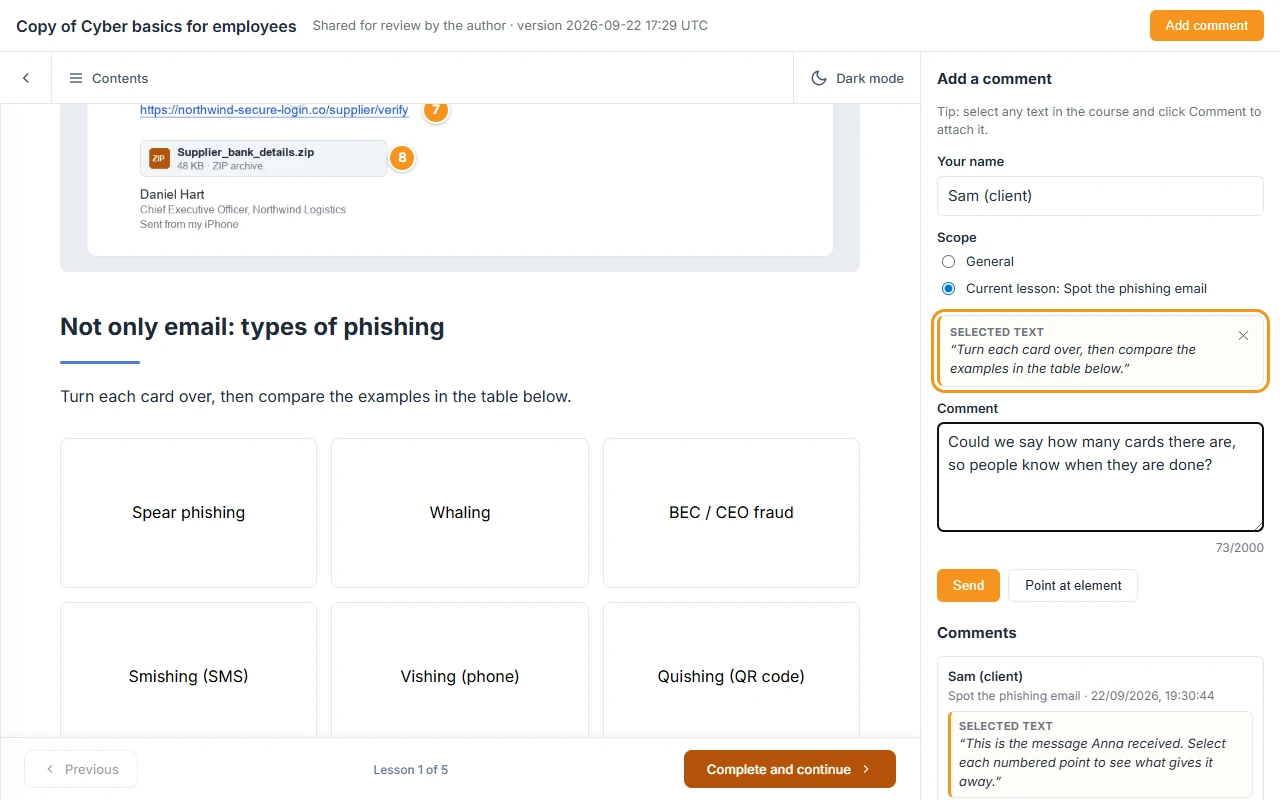
What you should see
Your comment appears under Comments in the panel, with your name and the time you sent it. Everyone who opens the same link sees the comments and names left on it. The author sees your comment on their side and can mark it resolved once they have addressed it.
If something goes wrong
- "Please fill in your name and the comment." Both fields are required.
- "This link has reached the limit of N comments." The link cannot take more comments. Ask the sender for a new link.
- The comment still does not send. The link may have expired or been revoked - ask the sender for a new one.
- The page says it cannot be found. The link has expired or was revoked. Ask the sender for a new one.
- The course will not load. Reload the page.
- You clicked a comment and see "Open ... in the course to see this place." The comment refers to a different lesson than the one you are viewing - open that lesson first.
Next
Once you send your comments, the author decides how to act on them - see Fix with AI: turn review comments into corrections if you are curious what happens next.